

Text to Video AI: Turn a Written Prompt Into a Video
Describe a scene in plain words and this text to video AI generates a short video clip from it, without filming or editing footage yourself first.
Updated
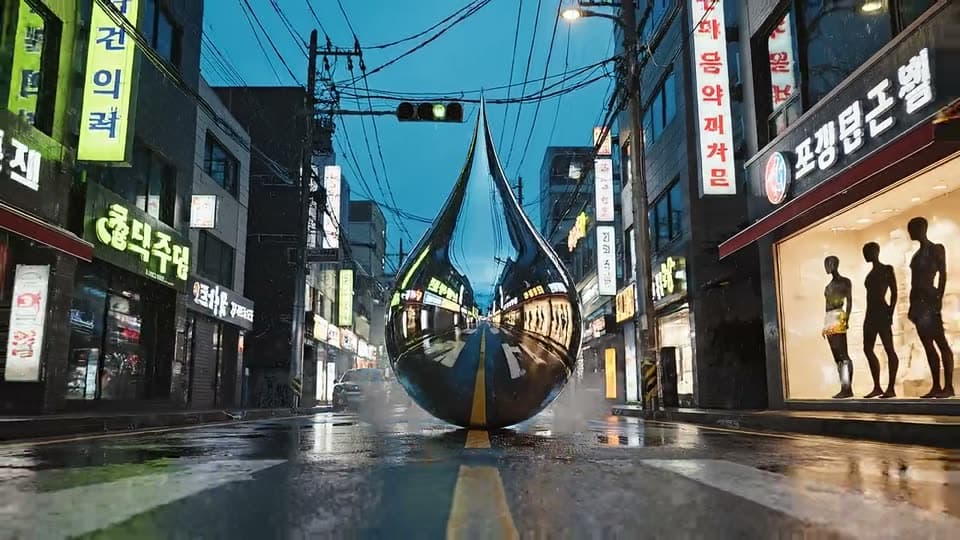
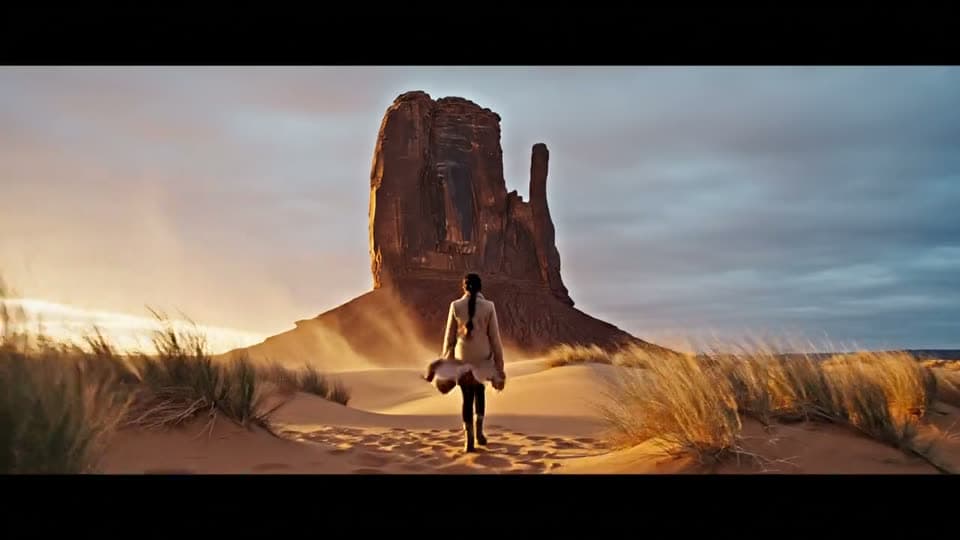
Real examples
Real results from the app.
How it works
Write your prompt
Describe the scene, subject and mood you want.
Pick a model
Kling 3.0 for camera moves, Veo 3 for sound, Wan for the lowest cost.
Preview and save
Watch the clip, then refine the prompt or save it.
Tips for a clean result
Describing the subject, setting, camera angle and mood in one or two sentences gives the model more to work with than a single word or a very long list of requests. Mentioning a specific camera move, like "slow zoom out" or "tracking shot", helps steer the motion.
What it can't do
The model generates a plausible short clip from your description; it doesn't have access to real footage, so it can't recreate a specific real event, place or person accurately from text alone. Complex prompts with several distinct actions in sequence are harder to render coherently than one clear scene.
Questions about Text to Video AI
What can I write to get a good video from text?
Describe the subject, the setting and the mood in a sentence or two, and mention a camera move if you want one, like a slow pan or zoom. Short, specific prompts tend to render more coherently than long lists of requests.
How long is the video I get from a text prompt?
Kling 3.0 gives 5 or 8 seconds, Veo 3 gives 6 or 8 seconds with audio, and Wan gives 5 seconds. One prompt makes one clip. For a longer piece, generate several clips from related prompts and join them in any video editor.
Can I use this for studying or explainer content?
Yes. Short clips from a description work for study aids, explainers and presentations. Review every clip for accuracy before you rely on it, because the model renders what you describe, not verified facts.
Which AI model should I pick for text to video?
Start with Kling 3.0 for camera moves and physical motion: 80 gems for 5 seconds. Pick Veo 3 when the clip needs sound: 1 cinema credit for 6 seconds. Wan is the lowest-cost option at 40 gems for 5 seconds. Run the same prompt on two models and keep the clip you prefer.

Coming soon to the App Store for iPhone
Chat, photo and video generation with several AI models in one app.