

Restore Old Photos: Repair Damage, Check Every Face
Upload a torn, faded or scratched photo and the tool repairs the damage while aiming to keep every face true to the original.
Updated
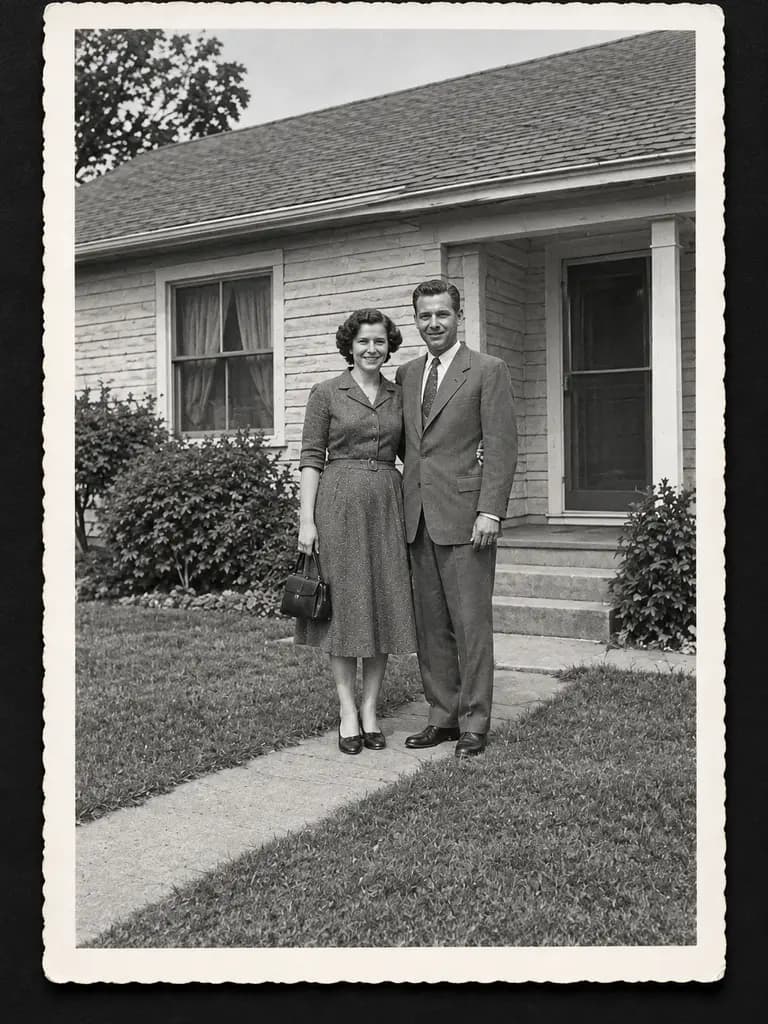
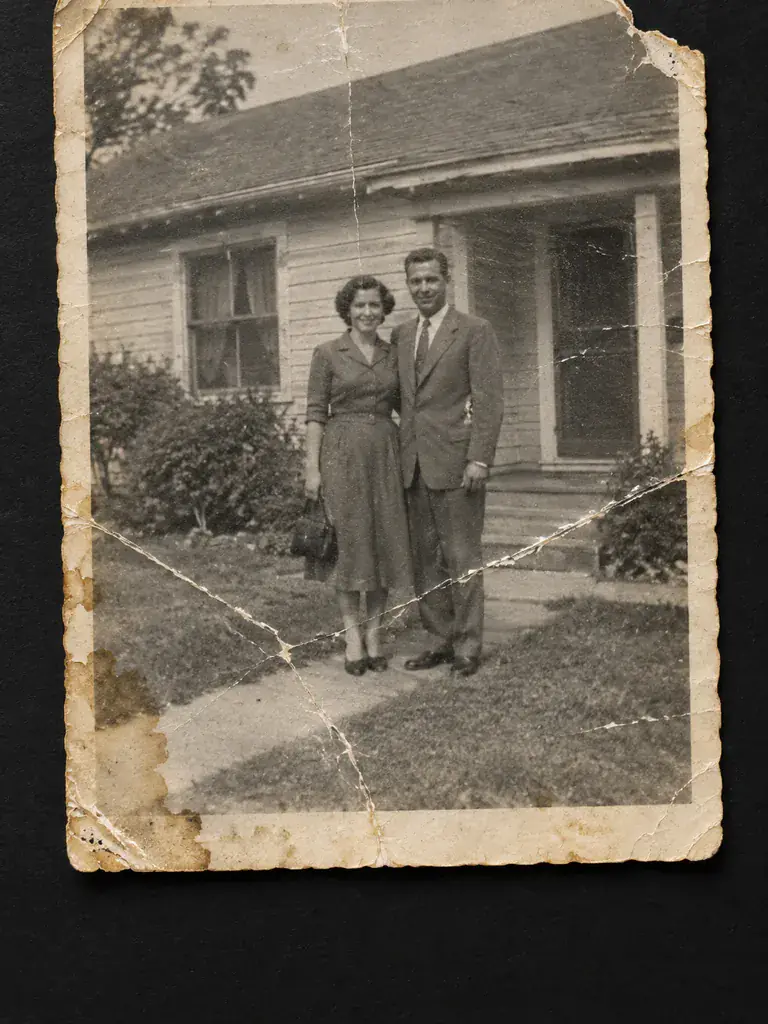 BeforeAfter
Examples
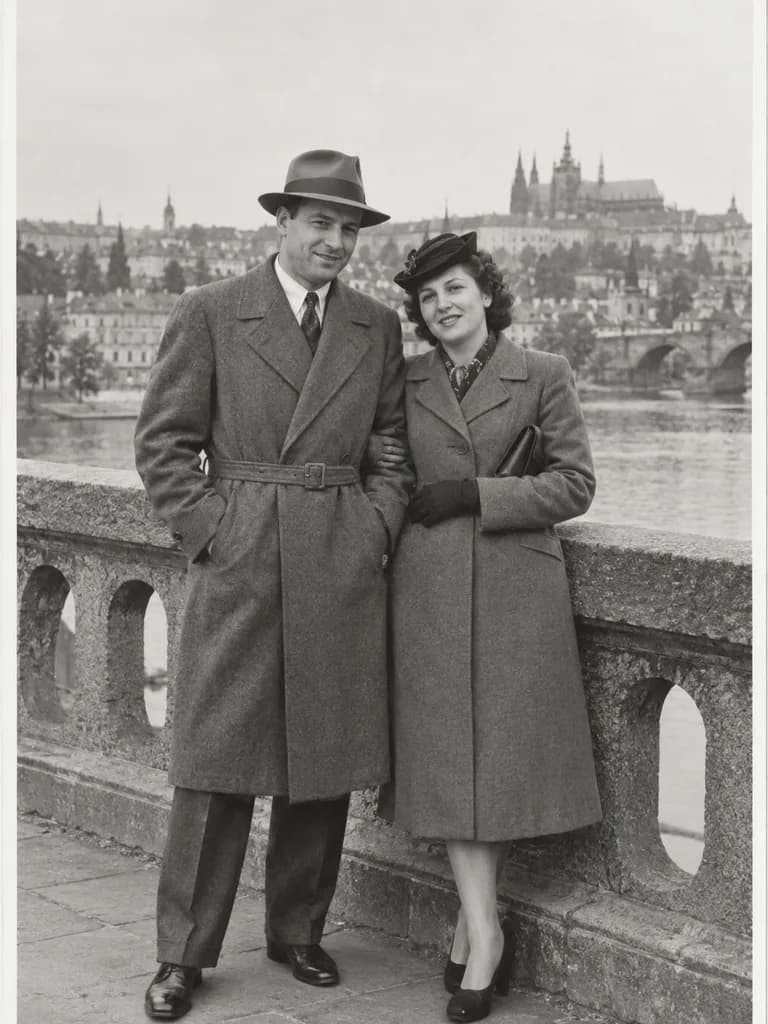
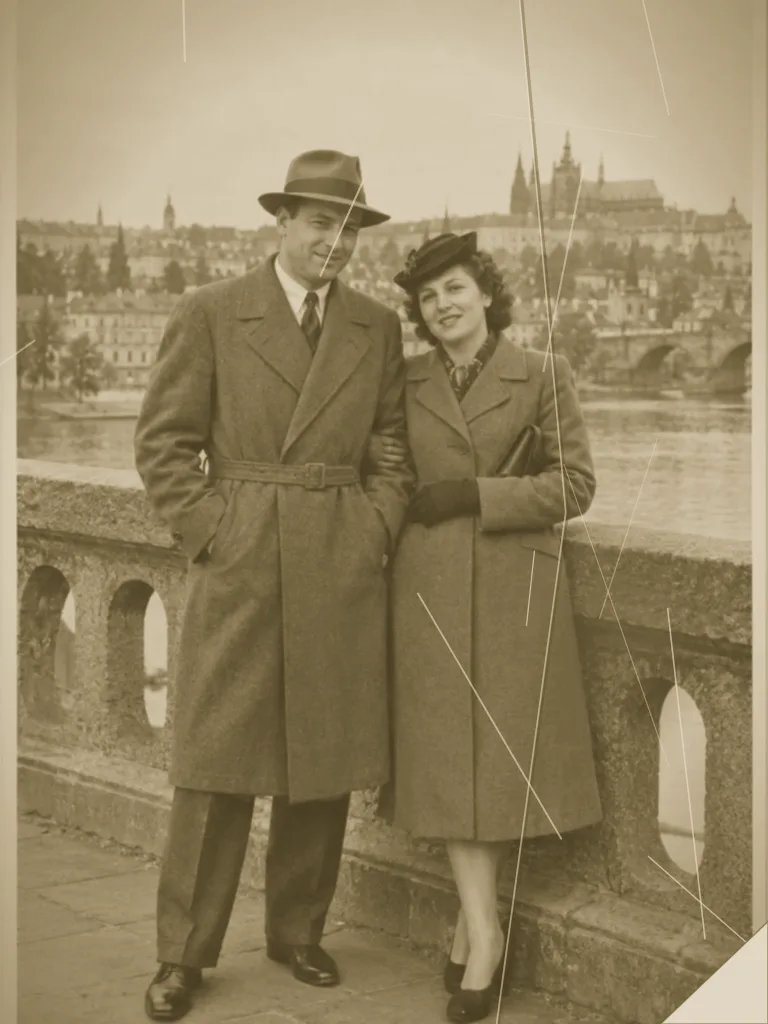
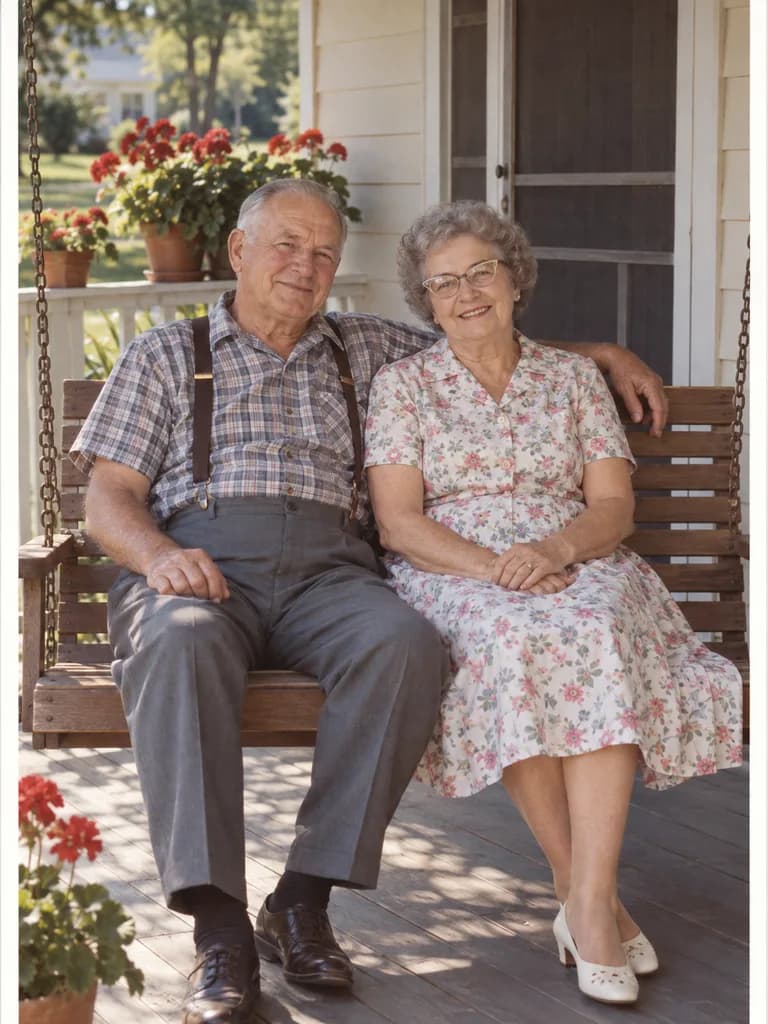
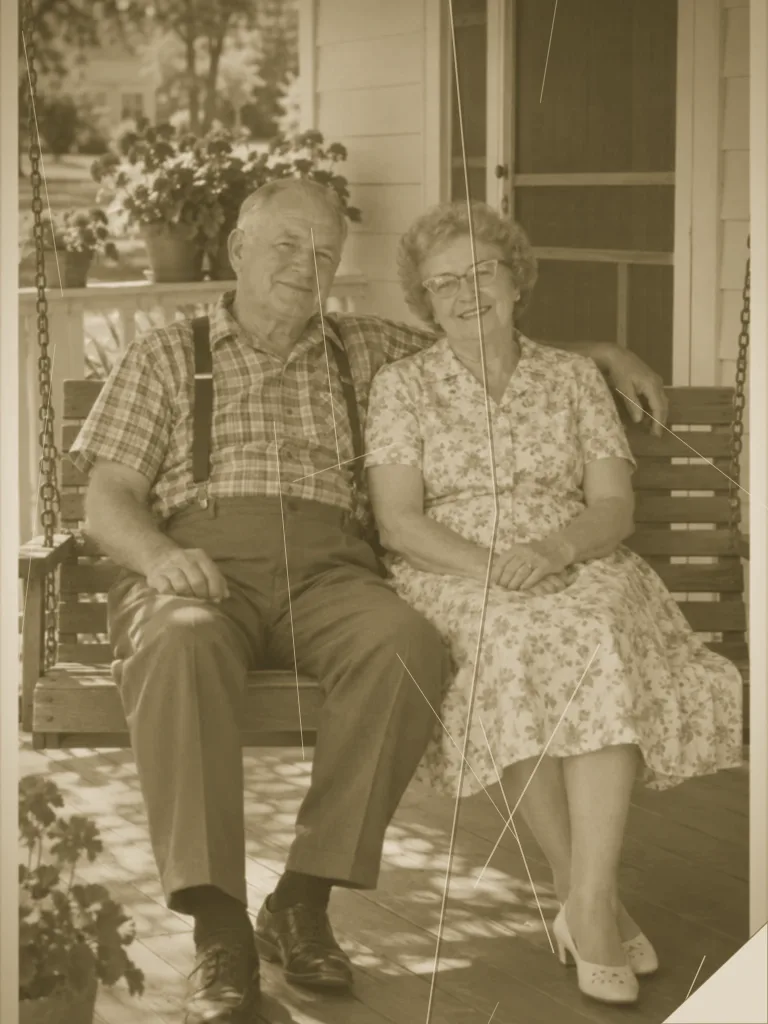
Illustrations of the kind of result this makes. They are not app outputs.
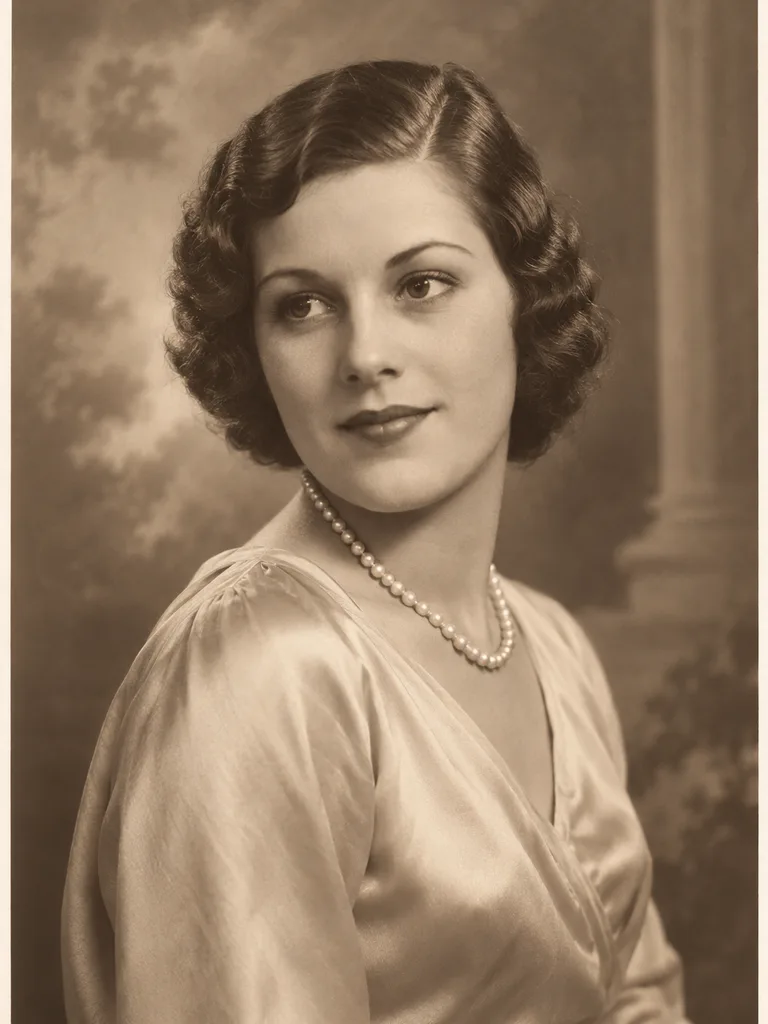
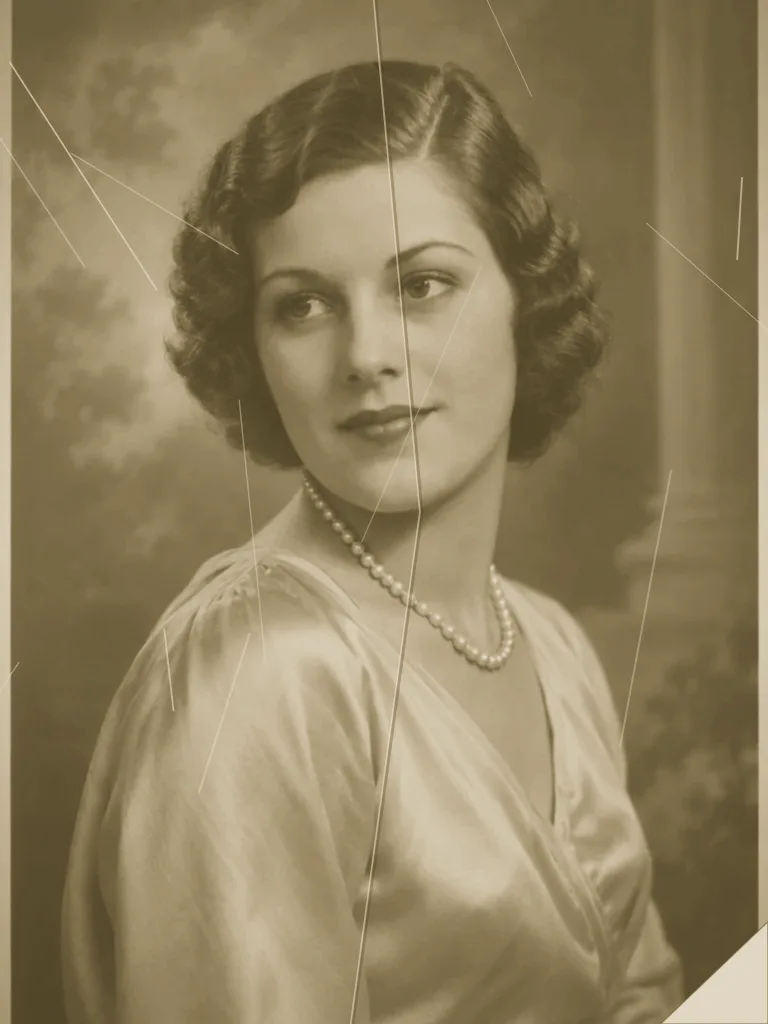 BeforeAfter
 BeforeAfter
 BeforeAfter
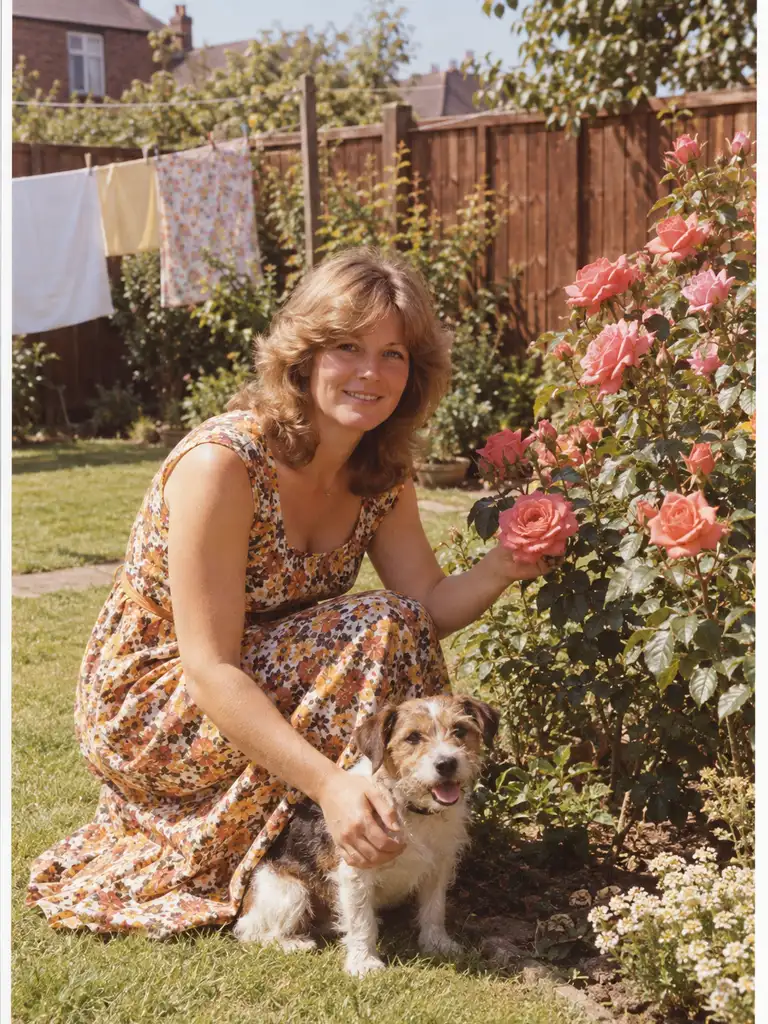
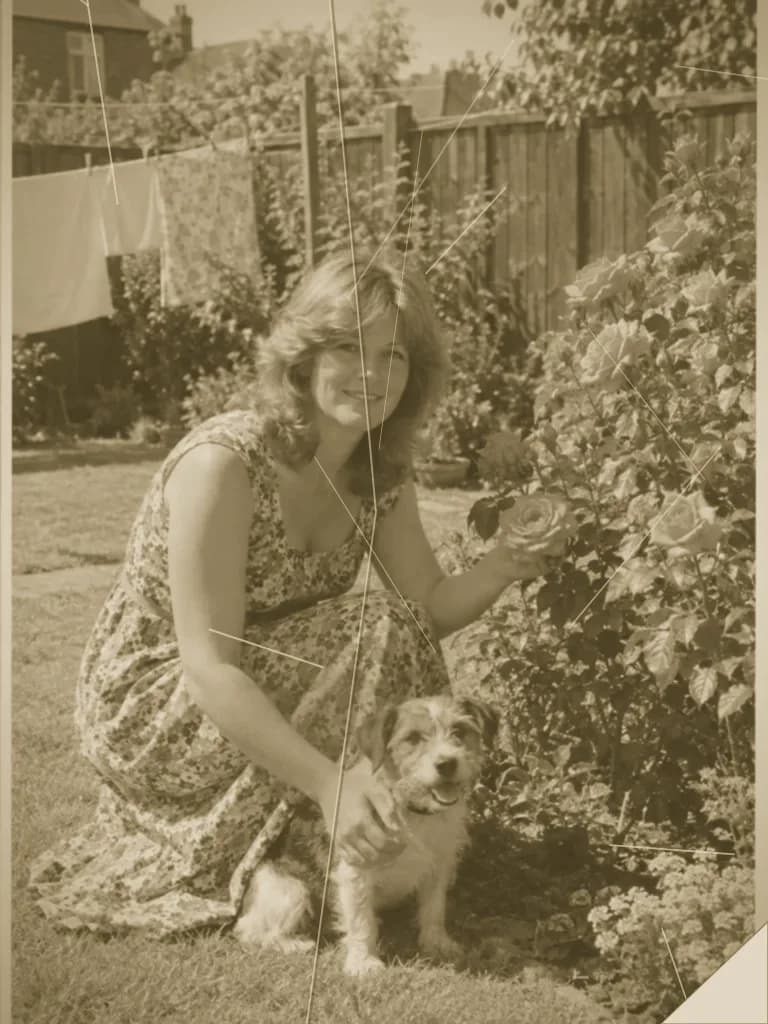 BeforeAfter
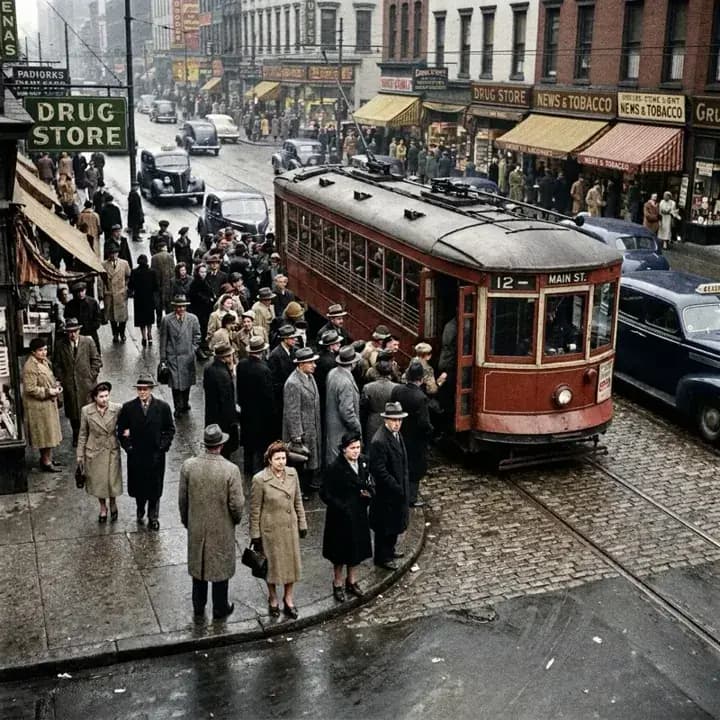
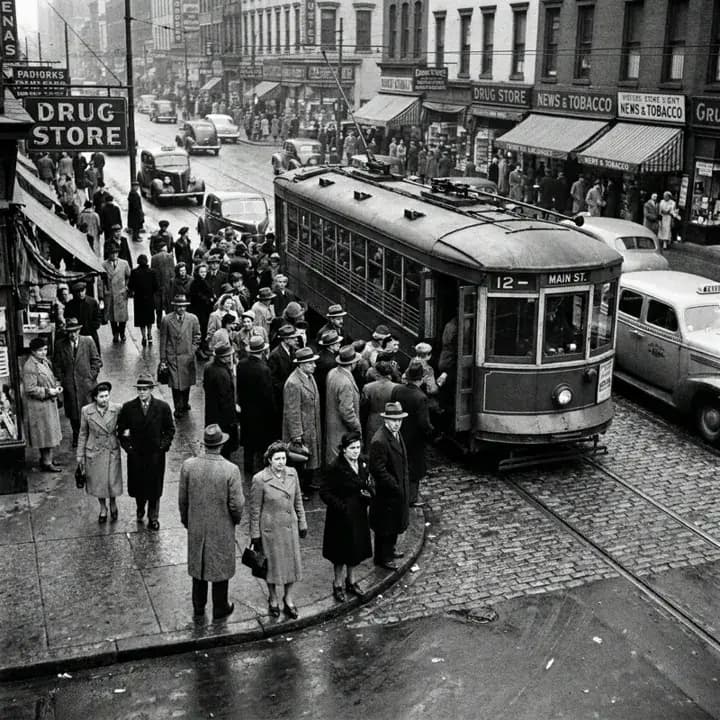 BeforeAfter
How it works
Open the tool and add your photo
Scans and photos of prints both work, damage and all.
Send the prepared instruction
It asks the model to repair damage and keep faces unchanged. Edit it if you like.
Compare faces with the original
Check faces and fine detail against your scan, then save the result.
About the examples
The restoration examples are illustrations made with an image model to show the kind of damage this tool targets, and none of them is a UniqAI output. The damage in them is simulated, not real: in the top pair both versions were made from text, and in the four pairs after it the clean photo was generated first and the scratches, creases, stains and fading were added on top of it. The colorize example at the end is a real result from the app. Examples from real restorations will be added.
How to get a clean result
A flat, evenly lit scan gives the model more real detail than a photo of a photo taken at an angle with glare. Flatten a curled print before scanning, since shadow lines can be mistaken for damage.
What it can and cannot do
It repairs visible damage on the photo you provide: scratches, creases, stains and fading. The model is generative, so it fills damaged areas with a plausible guess. It cannot recover a face or detail that is torn away. Always compare faces with the original before you share or print.
Restore first, then colorize or enhance
Repair the damage first, then colorize a black-and-white photo or enhance its sharpness. Doing it in that order keeps scratches from being colorized along with the rest.
Questions about Restore Old Photos
Can AI restore an old torn or scratched photo?
It is built for scratches, creases, stains and fading. Send a flat, well-lit scan of the original print for the most natural result. Small tears and scratches repair better than large missing areas, and you should compare the result with your scan before you save it.
Does AI photo restoration change people's faces?
The instruction asks the model to keep faces unchanged, but a generative model can still alter fine facial detail, especially where the damage is heavy. Compare faces side by side with the original. If something looks off, run it again with a note to change less.
Does it work on black-and-white and color photos?
Yes, you can use it on black-and-white, sepia and color prints. To add color to a black-and-white photo, use the colorize tool after the repair. Doing the repair first keeps scratches and stains from being colorized together with the rest of the picture.
What if part of the photo is torn away?
The model repairs visible damage, but it cannot know what was in a part that is missing, so it guesses. Treat filled-in areas as an estimate, not a record. Small gaps look more convincing than large ones. Keep your original scan as the reference copy.
Do I need to scan the photo, or is a phone photo enough?
A scan or a straight-on photo of the print works. Avoid angles, glare and shadows from your hand or phone. Use the highest resolution you have, because more real detail in the input gives the model more to work with when it rebuilds damaged areas.
How much does one restoration cost, and do I need an account?
One restoration on Nano Banana costs 12 gems, shown next to the model before you generate, and the gems come back automatically if the run fails. You sign in once with an email code or Google; the instruction from this page is kept, and the tool opens ready for your photo. New accounts start with 30 gems, enough for two restorations.

Coming soon to the App Store for iPhone
Chat, photo and video generation with several AI models in one app.