

Background Remover: Put the Subject on a Plain Background
Upload a photo and the model repaints everything behind the subject as a plain white or solid-color backdrop for 12 gems.
Updated
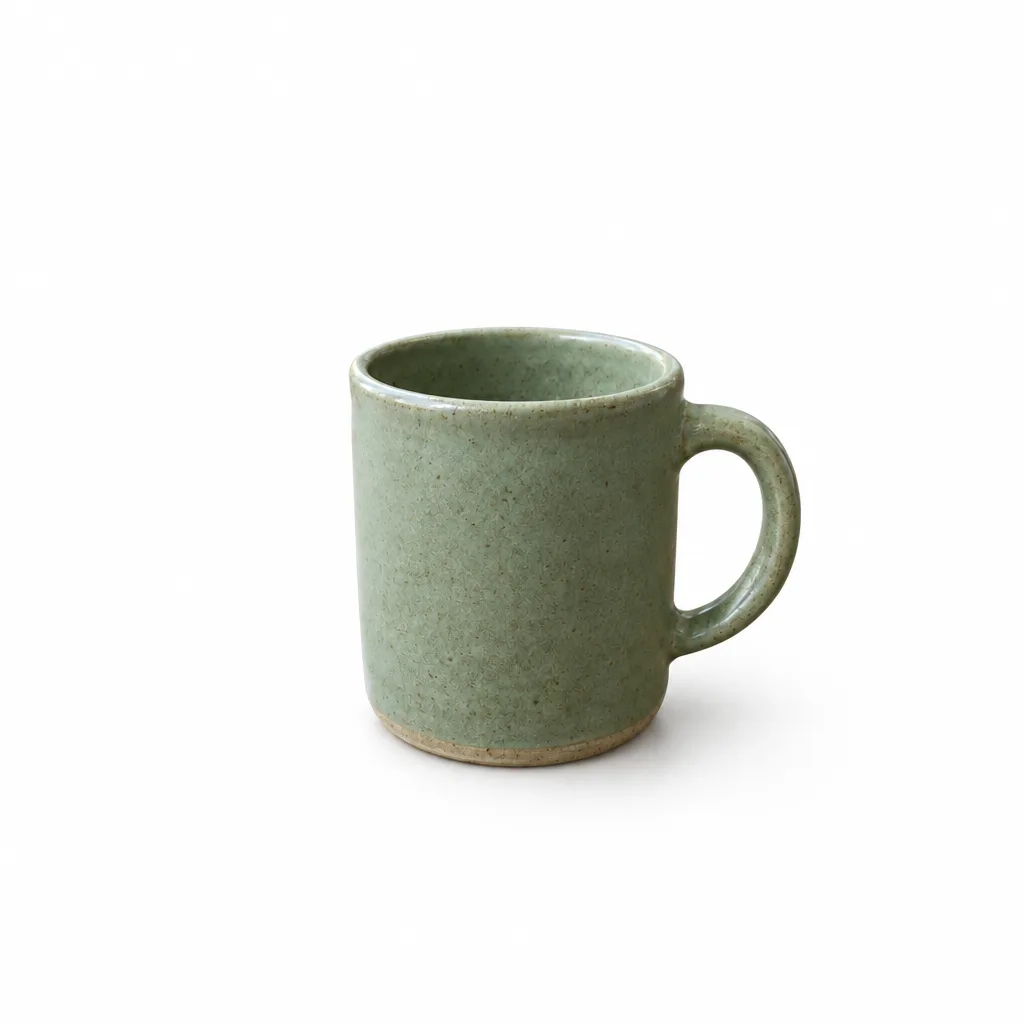
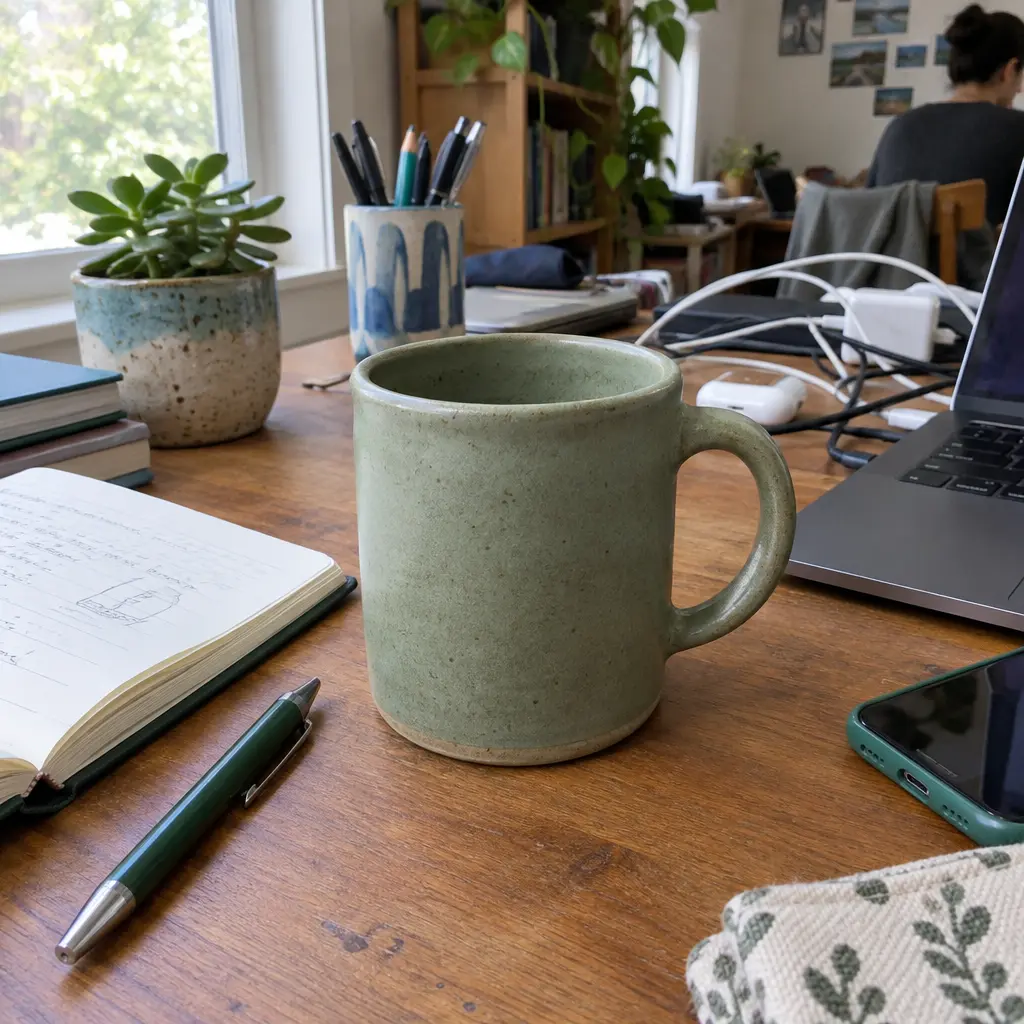 BeforeAfter
Examples
Illustrations of the kind of result this makes. They are not app outputs.
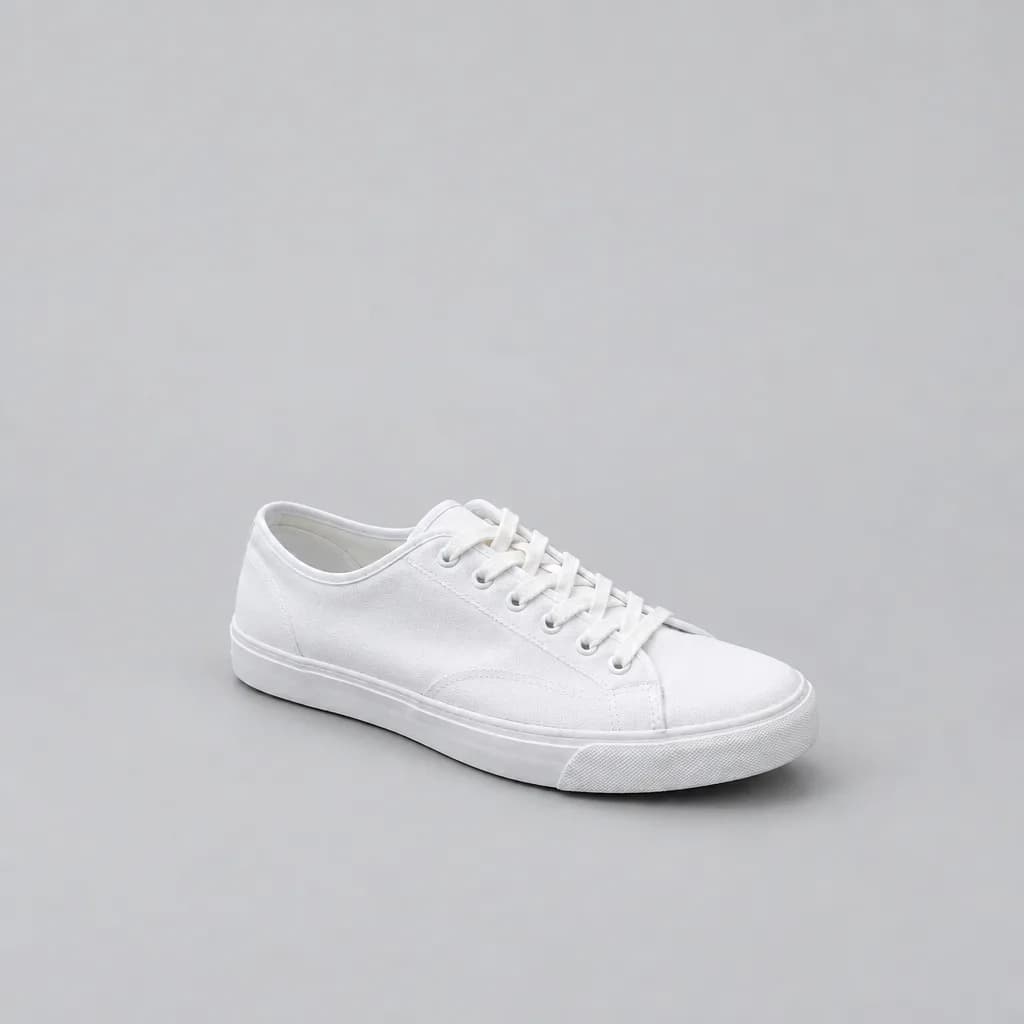
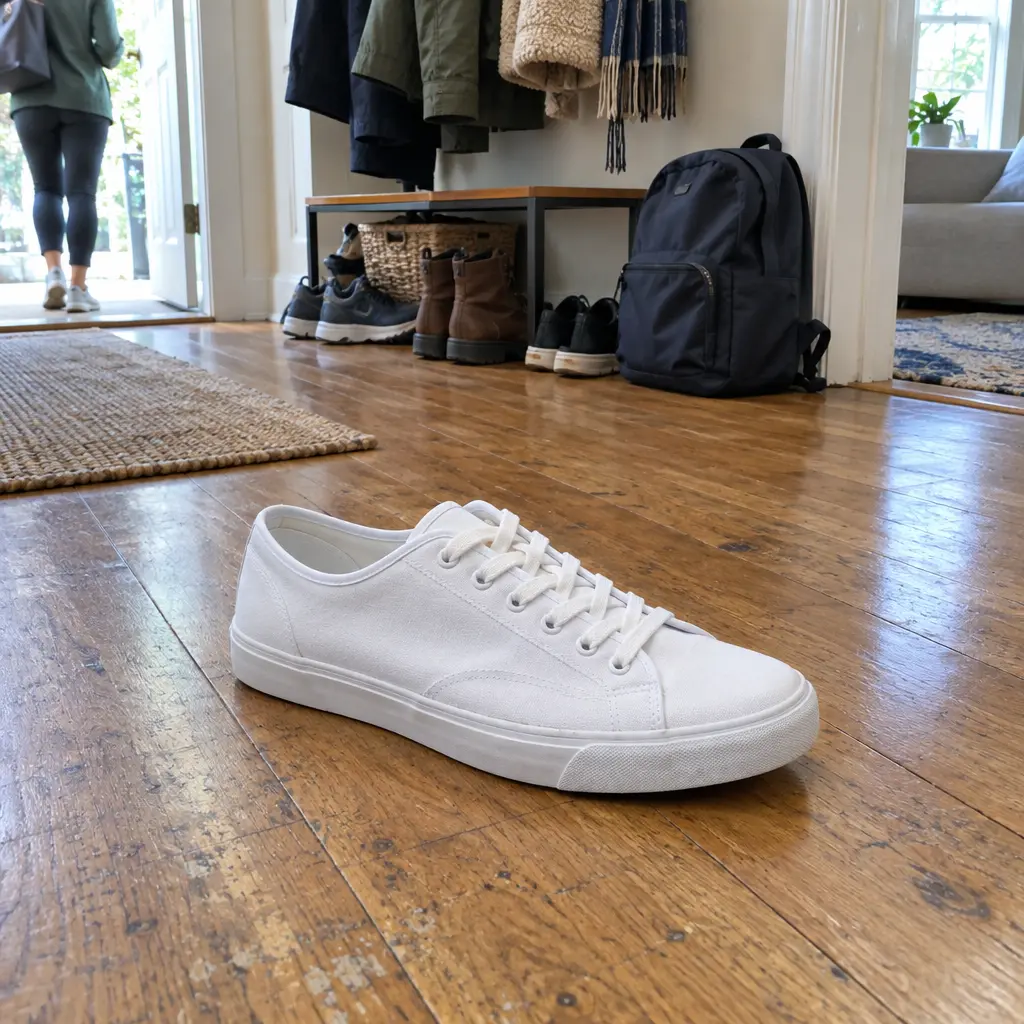 BeforeAfter
Example instruction: Remove the entire background and replace it with a plain, evenly lit light-grey studio backdrop. Keep the sneaker, its edges, colors and position exactly as they are, with a soft natural shadow under it. Do not change the framing, crop, camera angle, or anything not mentioned. The result must look like an untouched real photograph, with no smudges, repeated textures, halos or visible seams.

 BeforeAfter
Example instruction: …pure white studio backdrop. Keep the man, his face, hair edges, sweater and position exactly as they are. Do not change the framing, crop, camera angle, or anything not mentioned. The result must look like an untouched real photograph, with no smudges, repeated textures, halos or visible seams.
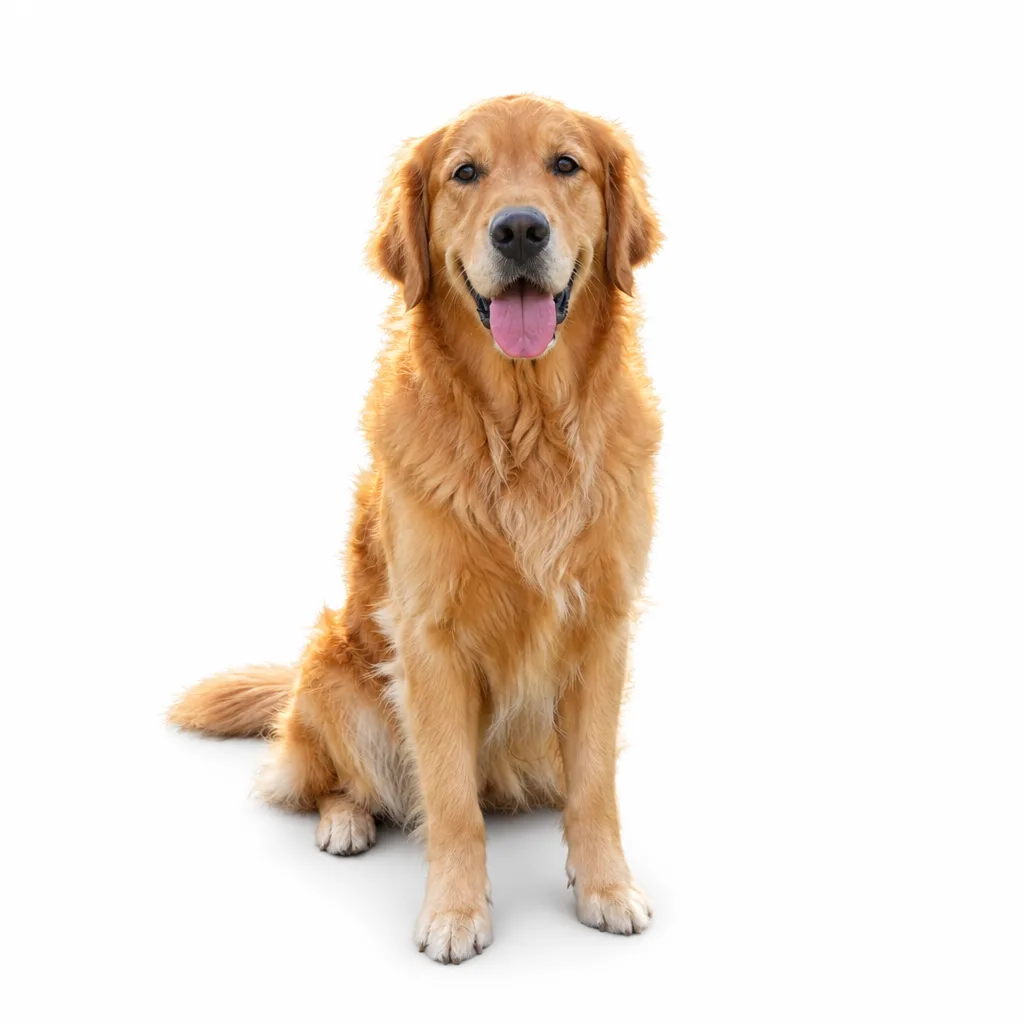
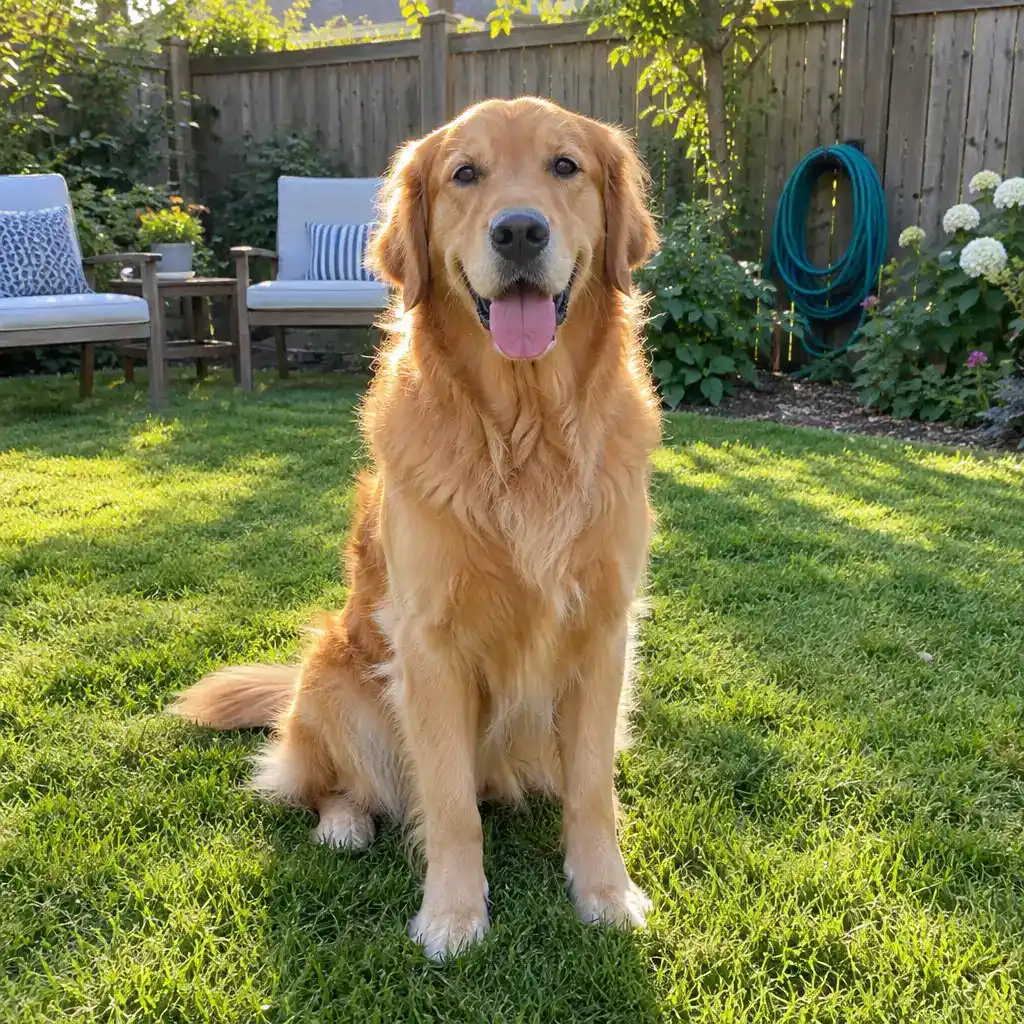 BeforeAfter
Example instruction: …backdrop. Keep the dog, its fur edges, colors and pose exactly as they are, with a soft natural shadow under it. Do not change the framing, crop, camera angle, or anything not mentioned. The result must look like an untouched real photograph, with no smudges, repeated textures, halos or visible seams.
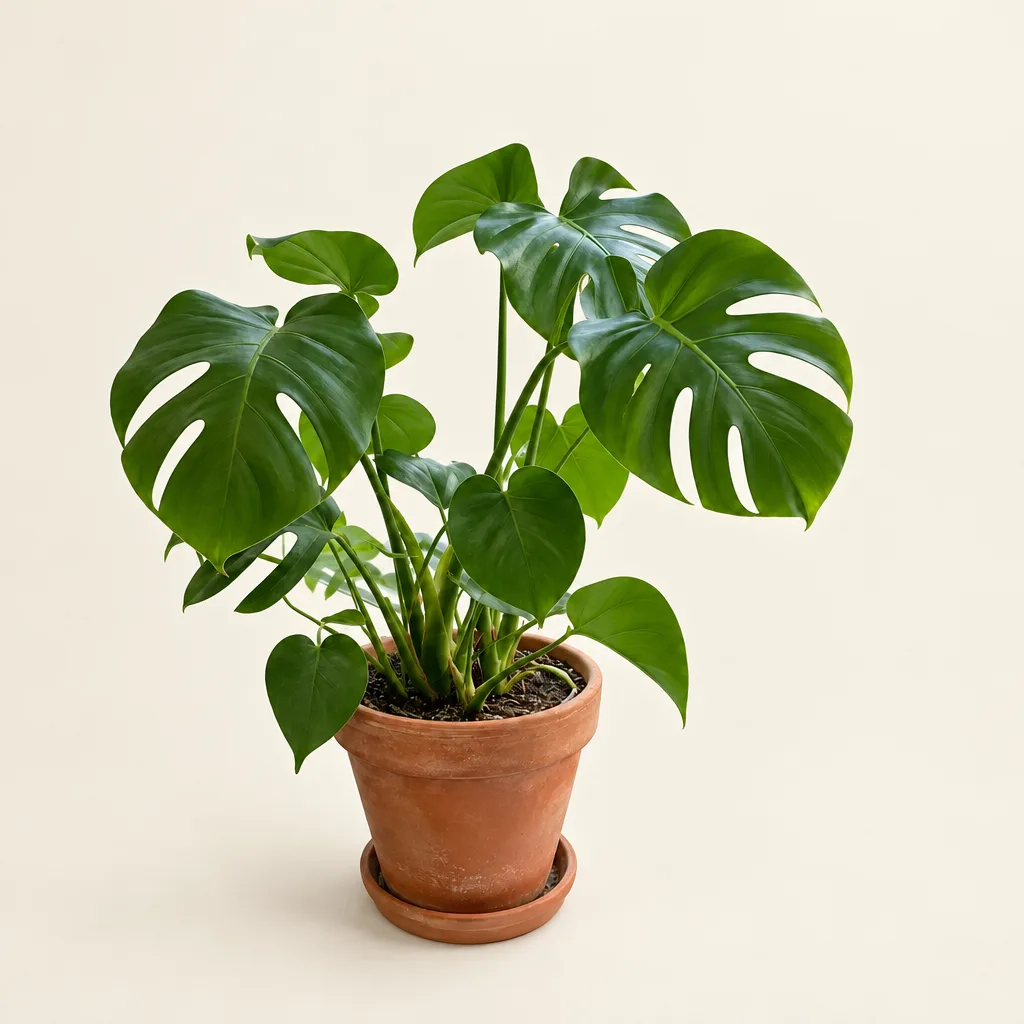
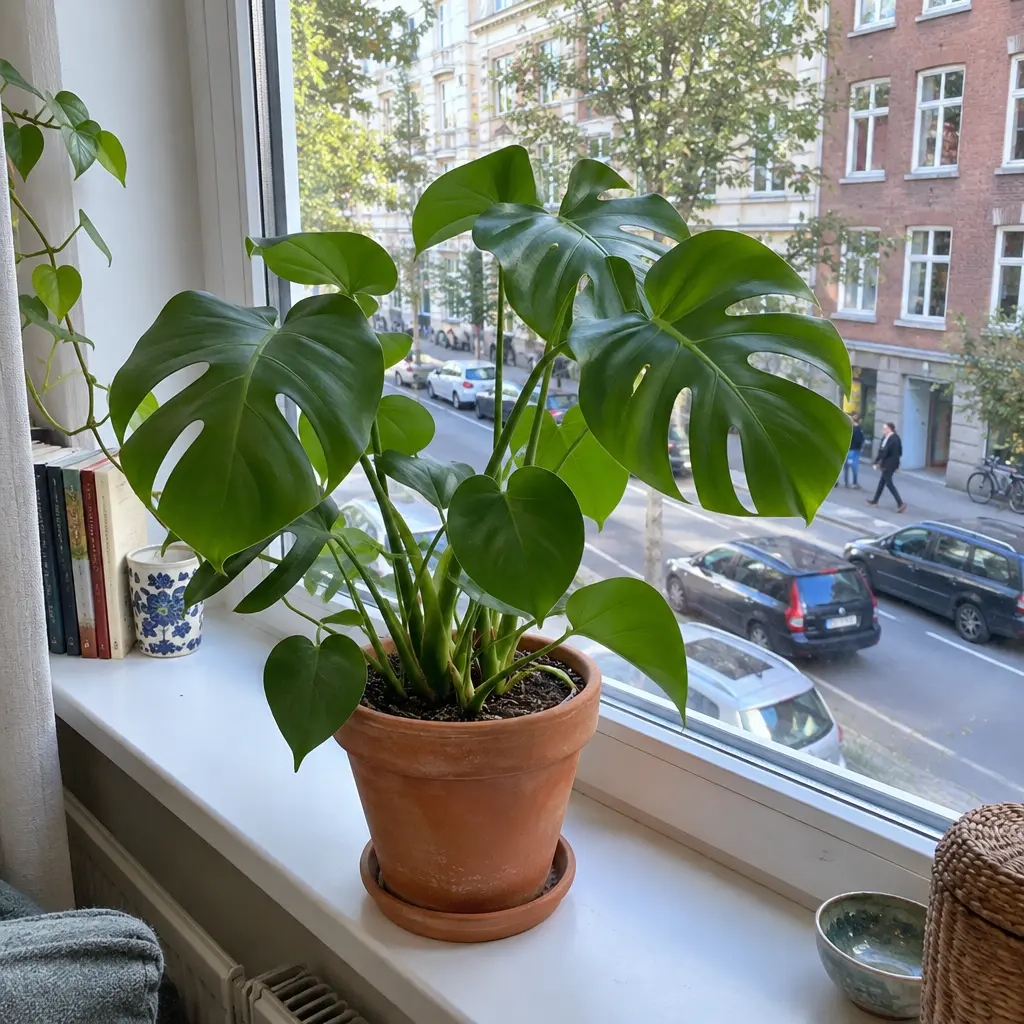 BeforeAfter
Example instruction: Remove the entire background, including the window and the windowsill, and replace it with a plain, evenly lit cream backdrop. Keep the plant, its leaves, the pot and its position exactly as they are, with a soft natural shadow under it. Do not change the framing, crop, camera angle, or anything not mentioned. The result must look like an untouched real photograph, with no smudges, repeated textures, halos or visible seams.
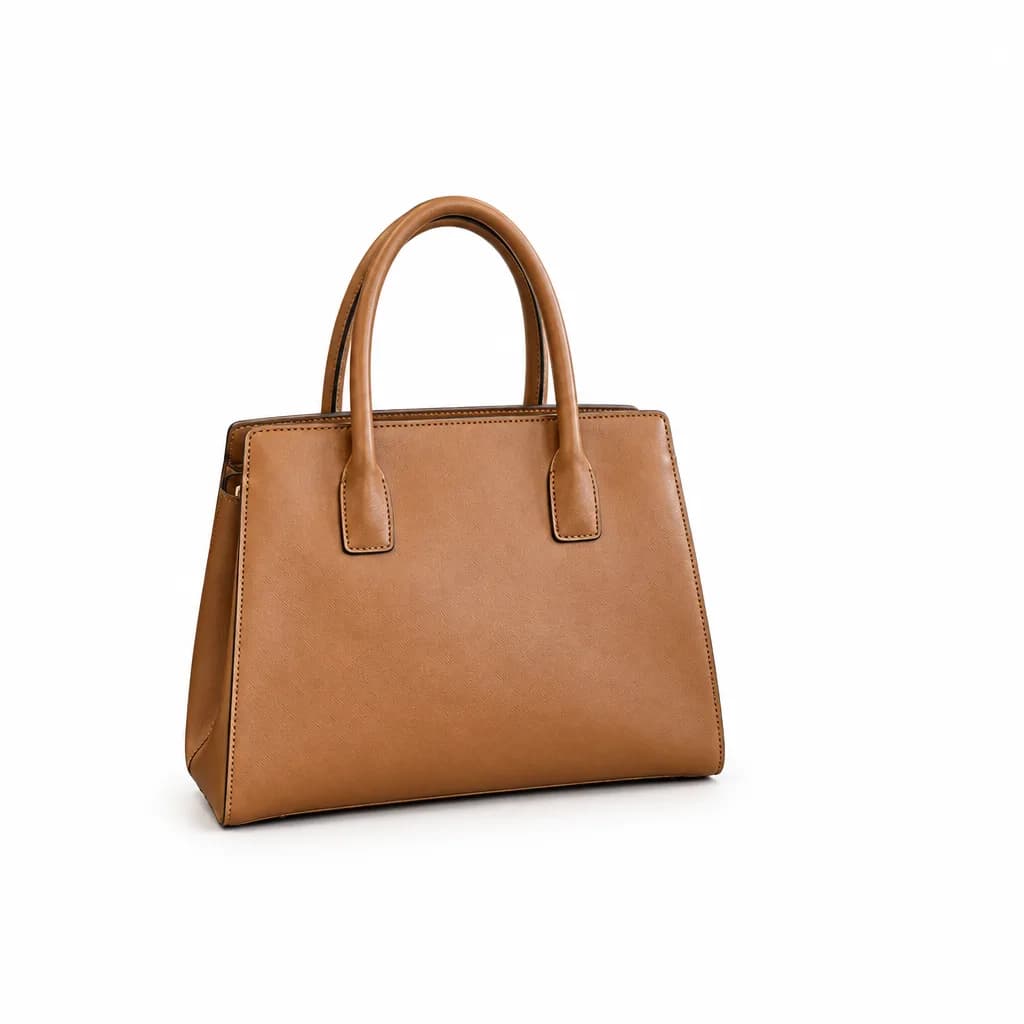
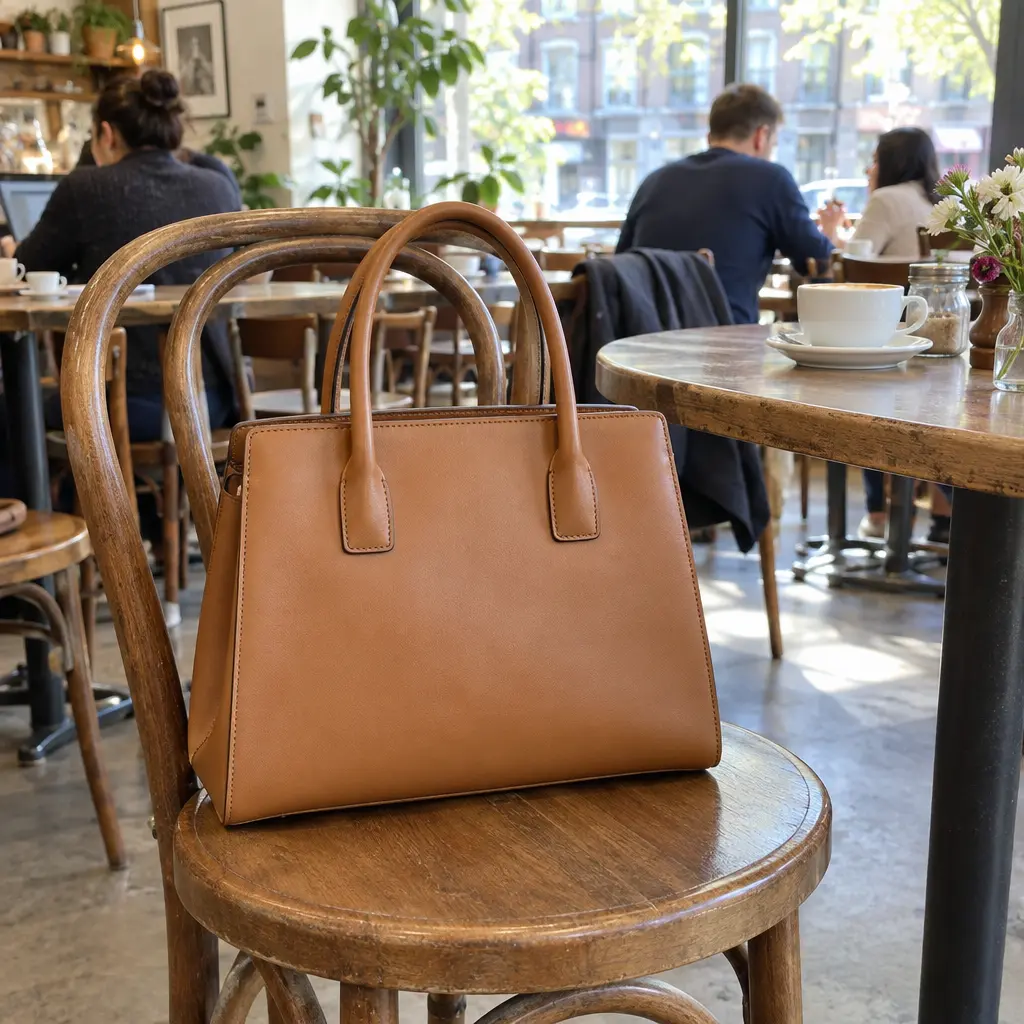 BeforeAfter
Example instruction: …chair, and replace it with a plain, evenly lit pure white backdrop. Keep the handbag, its edges, colors and position exactly as they are, with a soft natural shadow under it. Do not change the framing, crop, camera angle, or anything not mentioned. The result must look like an untouched real photograph, with no smudges, repeated textures, halos or visible seams.
How it works
Add your photo
One clear subject: a product, a person or a pet, ideally not touching the edge of the frame.
Pick the backdrop color
The prepared instruction asks for pure white. Change it to light grey, black or any color you name.
Check the edges and save
Zoom in on hair, fur and thin handles against the new background, then save.
Do I get a transparent PNG?
IllustrationWhat you get: a flat image on a solid backdrop
Not included: transparent cut-out
Need one? Run a cut-out app on the white result.
No. The model repaints the picture, so the result is a flat image with a solid background rather than a cutout with transparency. For the plain white background that product listings and ID-style photos usually need, that is the finished file. If you need a true transparent layer for a design tool, use a dedicated cutout app on the result; a clean white background makes that step easy.
About the examples
The before-and-after pairs on this page are illustrations made with an image model to show the kind of result the tool targets. They are not UniqAI outputs. Examples from real edits in the app will be added.
What it can and cannot do
It is a generative edit: everything behind the subject is replaced by the backdrop you name, and the subject is kept as closely as the model can manage. Clear outlines such as mugs, shoes and bags come out clean; loose hair, fur and glass edges can shift slightly, and a subject that is cut off by the frame edge may be redrawn there. Compare the result with the original, especially faces, before you use it.
Background remover or background changer?
This page gives a plain, solid background. If you want a new scene instead, such as a beach or a studio set, use Background changer; it is the same 12-gem edit with a different instruction. For any other change you can describe in a sentence, use the AI photo editor.
Questions about Background Remover
Does the background remover work on people and products?
Yes. A product, a person or a pet with a clear outline works well. The model repaints everything behind the subject as the plain backdrop you name. Subjects with loose hair or fur need a closer look at the edges before you save.
Can I choose a color other than white?
Yes. The prepared instruction asks for pure white; edit it to light grey, black, cream or any color you can name, or to a gradient. Keep the line asking the model to leave the subject unchanged.
What file do I get after removing the background?
A flat image with the subject on the solid background, which you can download from the web app. It is not a transparent PNG, because the model repaints the picture rather than cutting the subject out.
How much does it cost to remove a background?
A background removal on Nano Banana costs 12 gems, shown next to the model before you generate. A test on Flux Schnell costs 3 gems. If a generation fails, the gems are returned.
Will it work on a busy or cluttered photo?
Yes, a cluttered background is the normal case. The result is cleanest when the subject stands out from what is behind it and does not touch the frame edge. Thin strands of hair over a busy scene are the hardest part, so zoom in on them.

Coming soon to the App Store for iPhone
Chat, photo and video generation with several AI models in one app.