

AI Photo Editor: Change a Photo by Describing the Edit
Upload a photo and describe the edit in a sentence: swap the background, change the outfit, fix the light.
Updated
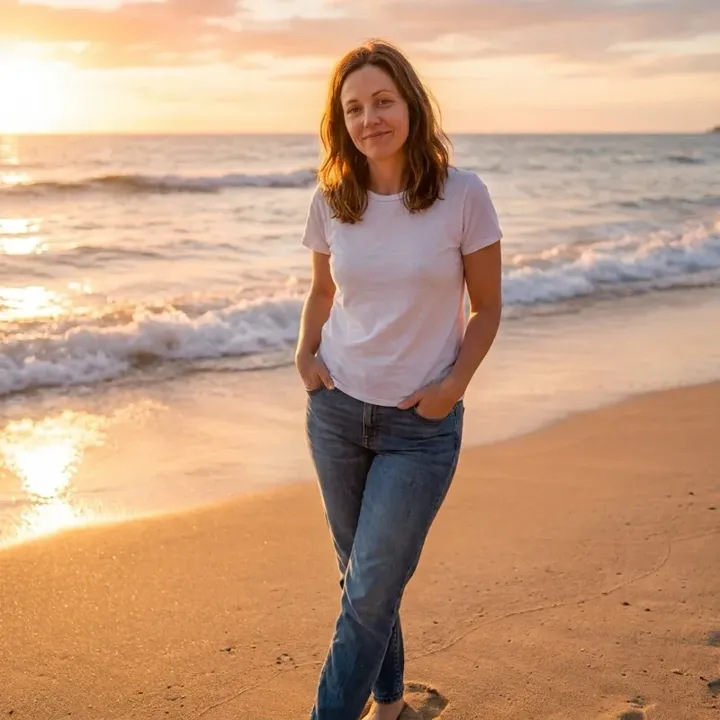
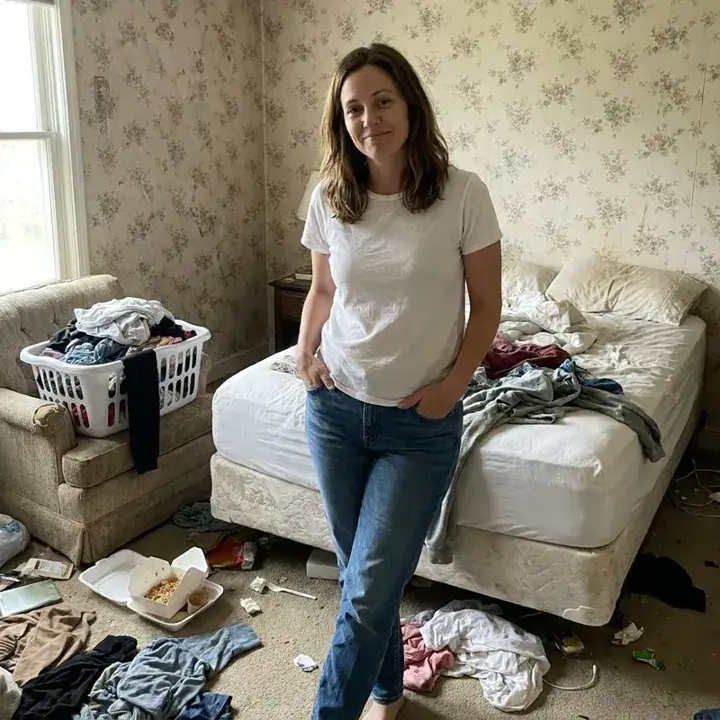 BeforeAfter
Examples
Illustrations of the kind of result this makes. They are not app outputs.
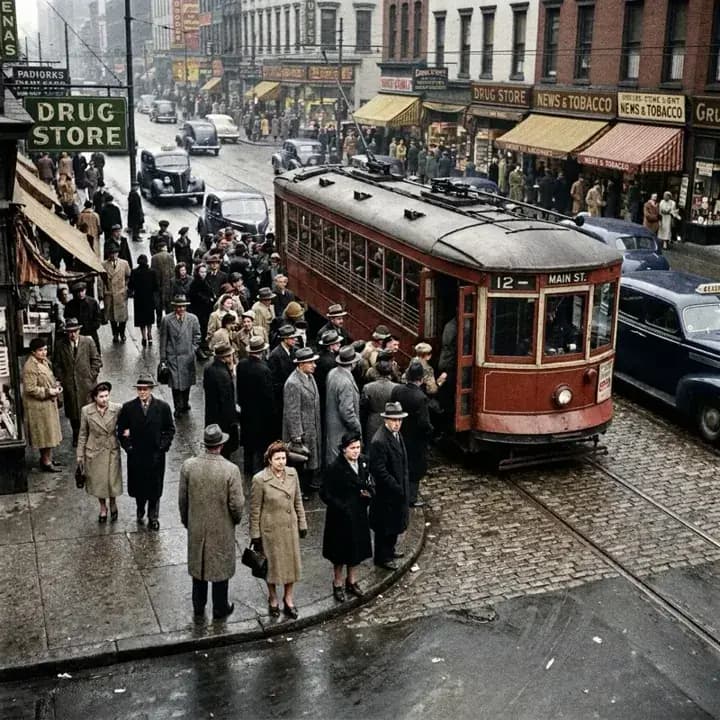
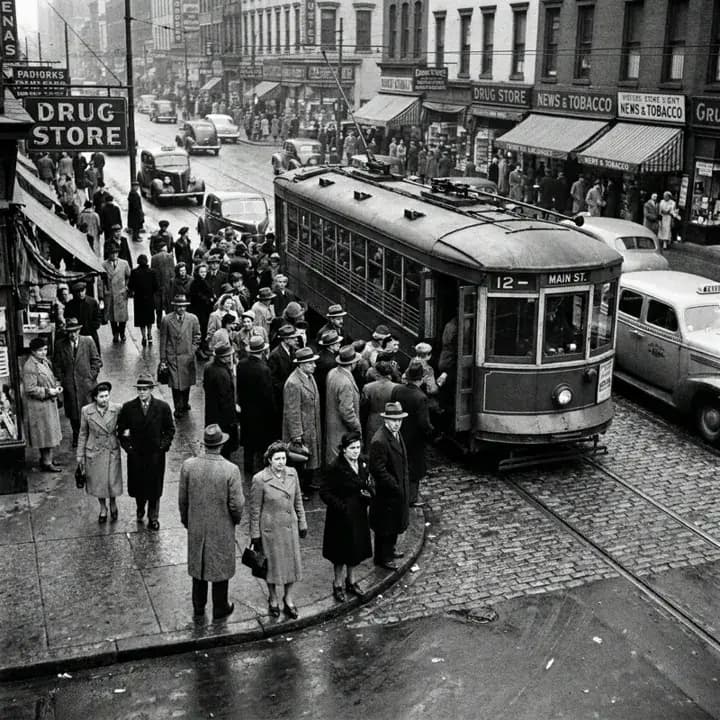 BeforeAfter
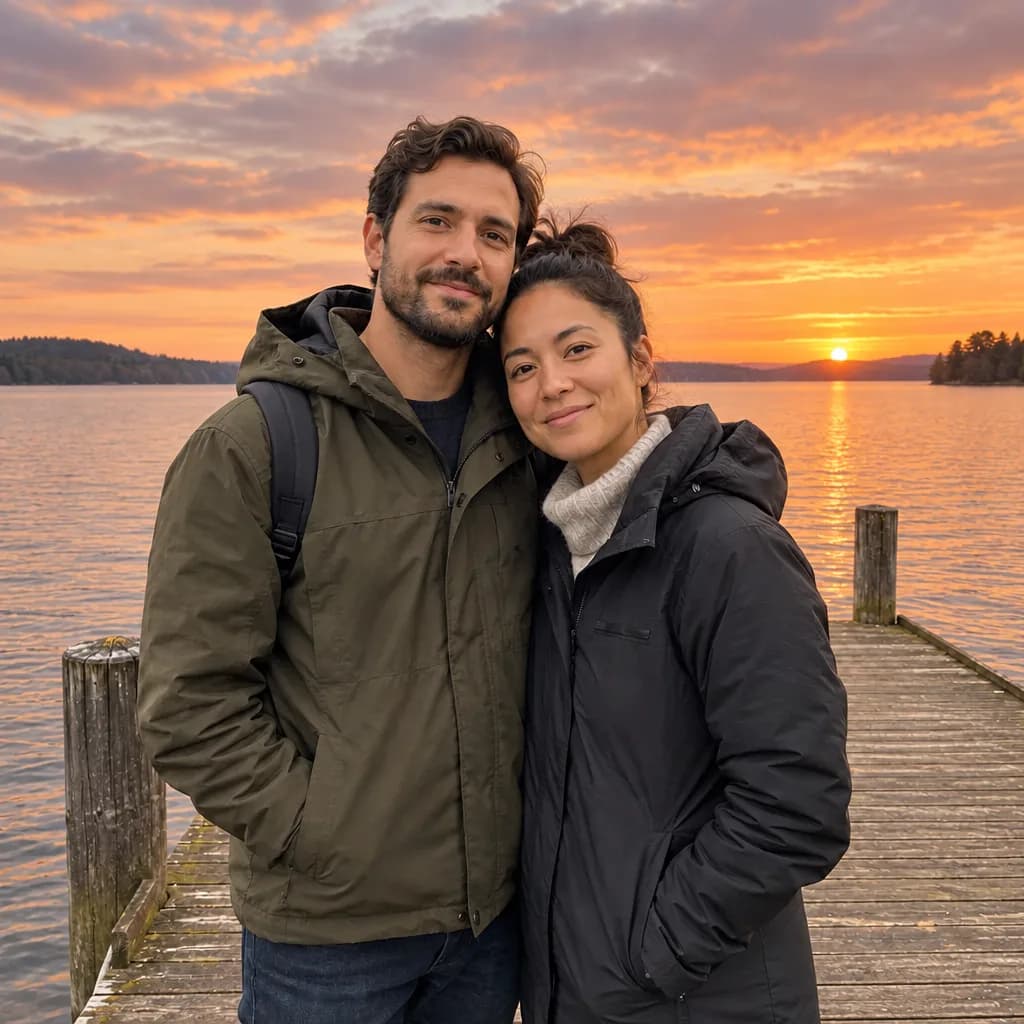
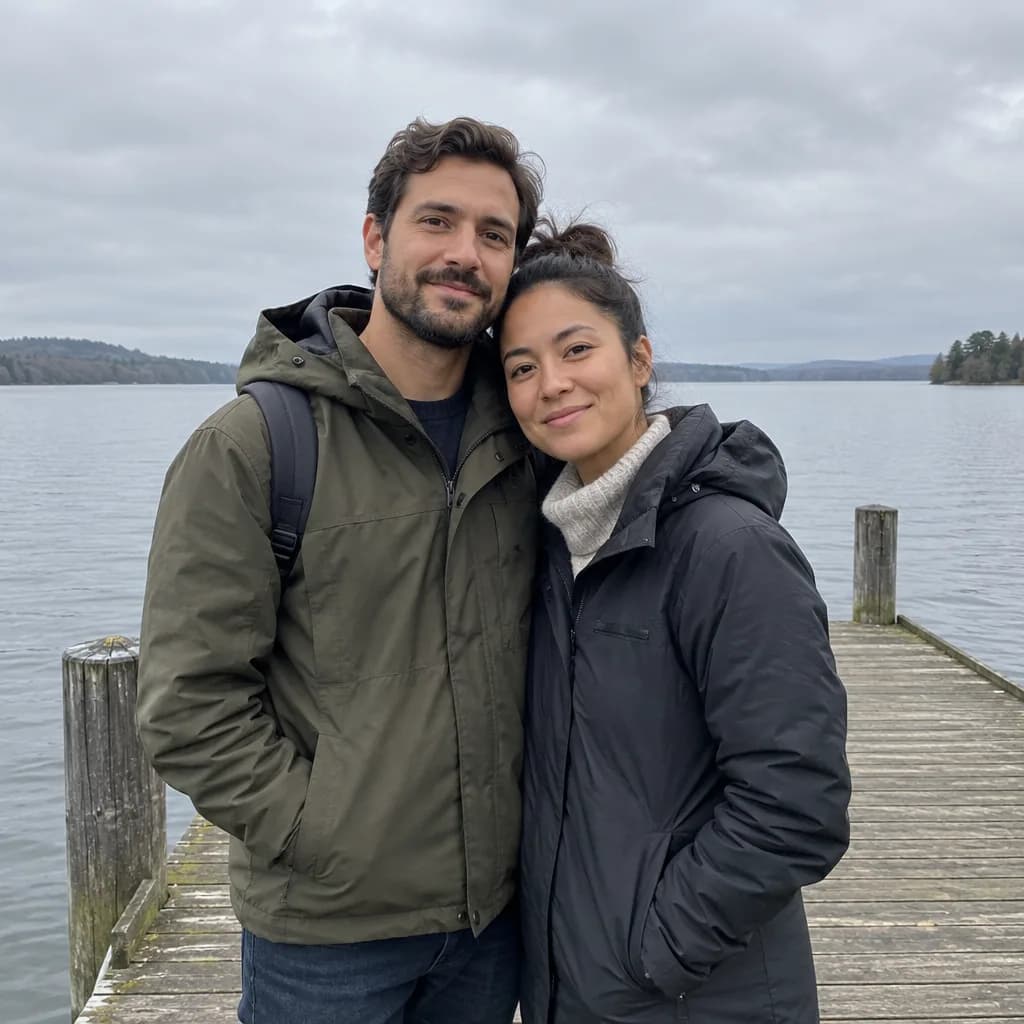 BeforeAfter
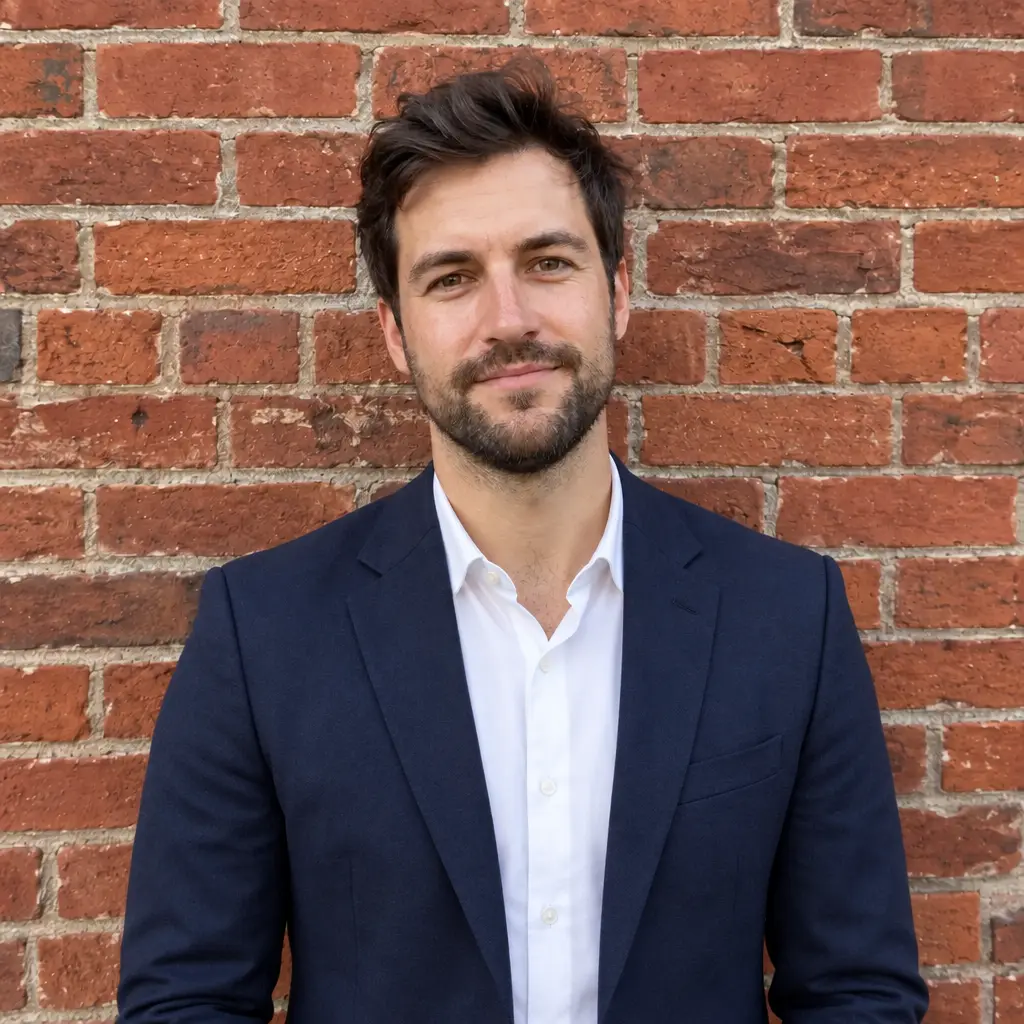
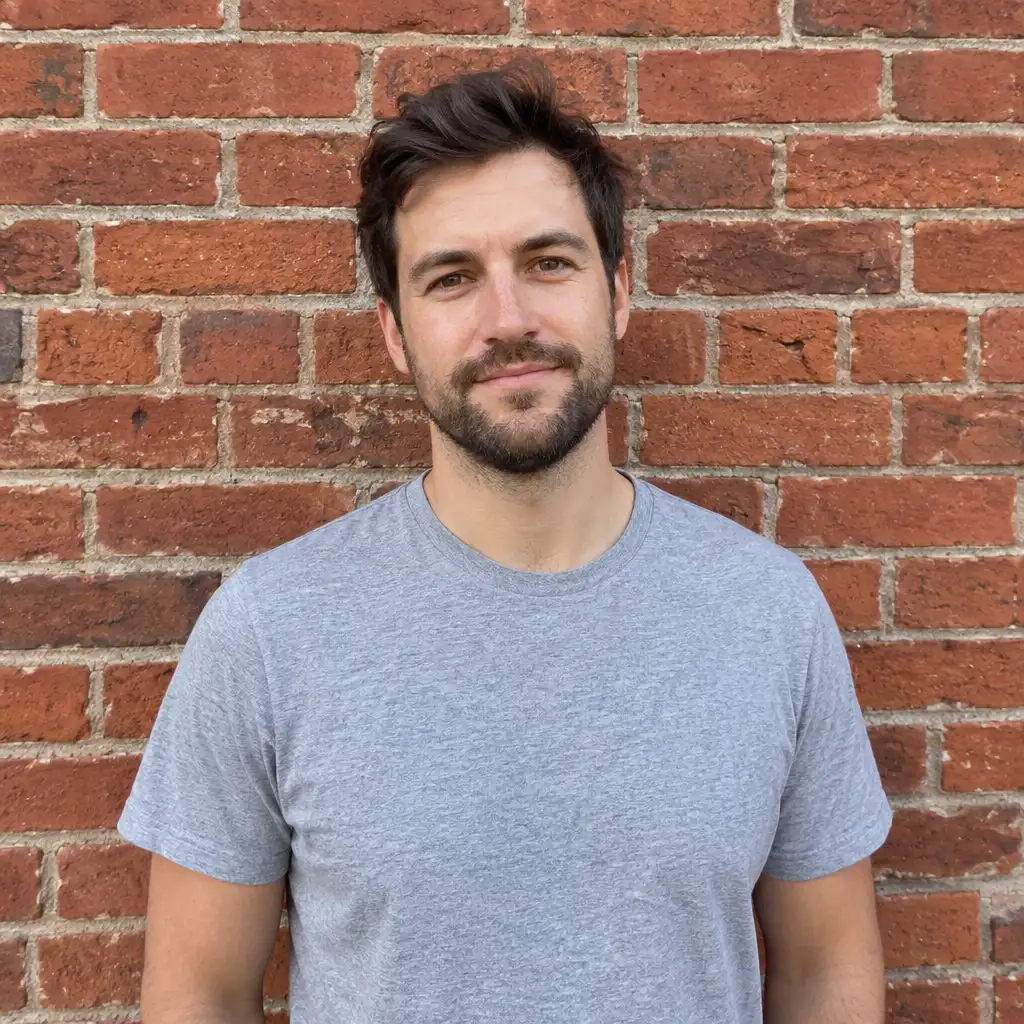 BeforeAfter
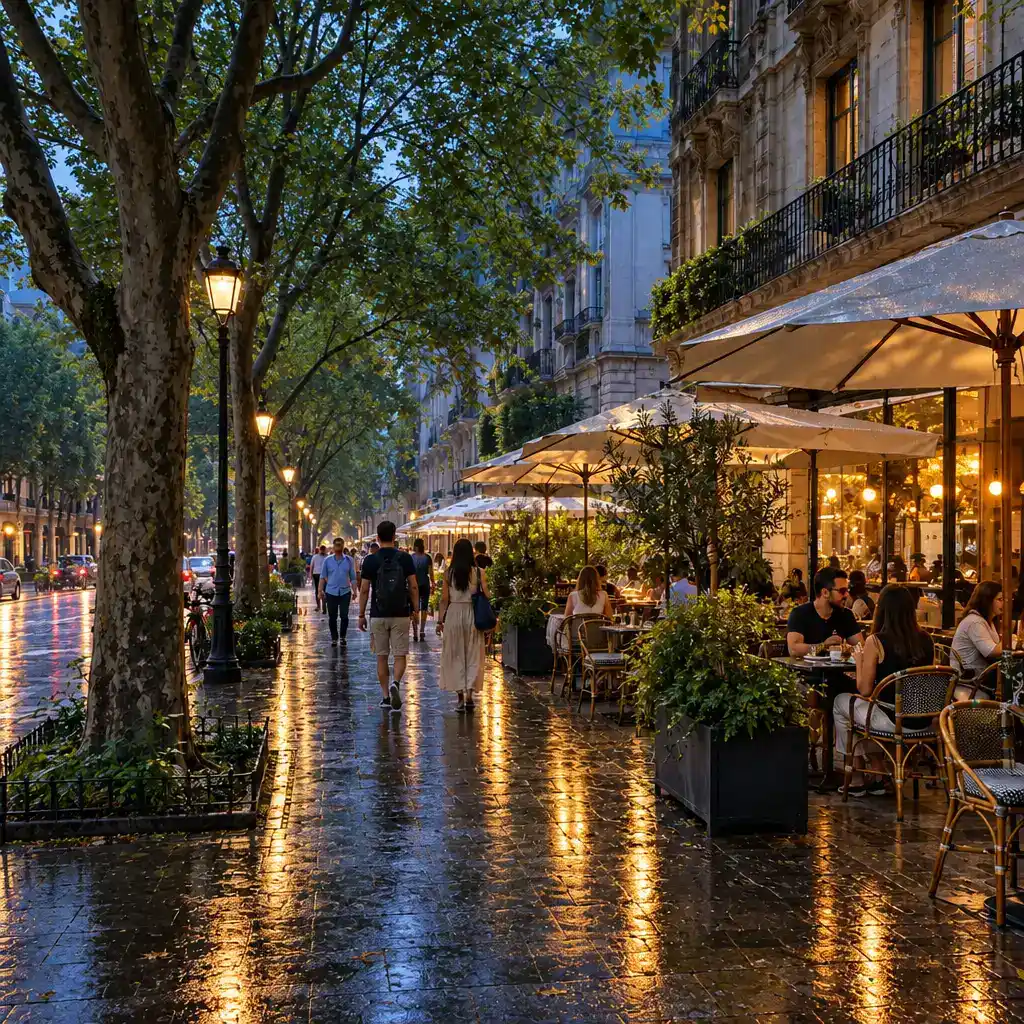
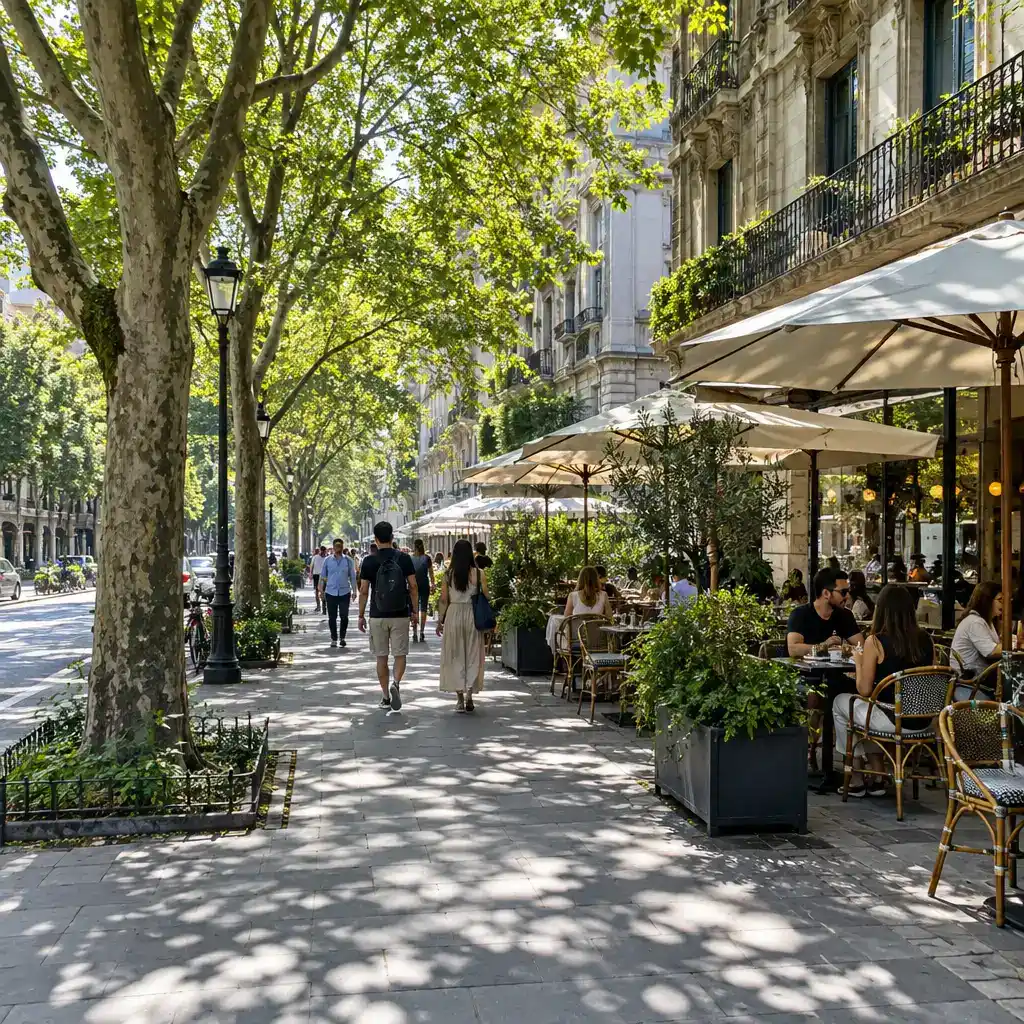 BeforeAfter

 BeforeAfter
How it works
Add your photo
A portrait, a product shot or a room: any photo you want to change.
Describe one change
For example "make the sky a sunset" or "swap the jacket for a black one". Say what must stay the same.
Compare and save
Check faces and details against the original, then save or describe the next change.
What can I change with one sentence?
The editor reads your instruction and repaints the photo to match it. Edits that work well from a single sentence:
- Background: "replace the room with a beach at sunset" (the first example above).
- Color: "colorize this black-and-white photo with natural tones" (the second example).
- Outfit: "swap the T-shirt for a dark blazer".
- Light and weather: "make it golden hour", "add soft rain and wet pavement".
- Sky: "replace the grey sky with a clear blue one".
- Small fixes: "remove the coffee cup from the table".
Add "keep the person exactly as in the photo" at the end whenever a face is in the frame.
Which model should I pick for a photo edit?
| Model | Cost | When to pick it |
|---|---|---|
| Nano Banana Default | 12Gems | The default for edits: follows the instruction closely and keeps faces steady |
| Flux Schnell | 3Gems | Cheap tests of a wording before you spend more |
| FLUX 1.1 Pro | 18GemsPaid plan | A final version in a wide or vertical format |
All three accept a photo plus text. The cost is shown next to the model before you generate, and a failed generation returns its gems.
About the examples
Both examples on this page are illustrations of the kind of edit you can ask for (a bedroom turned into a beach, a street photo colorized), not saved results from the UniqAI app. They are marked as Illustration. Results made in the app will replace them as they are added.
What it can and cannot do
It is a generative edit: the model rebuilds the picture around your instruction rather than moving pixels with layers or masks. That is why a background swap is easy and why fine detail such as hair edges, jewellery or text on clothing can shift. It cannot read your mind about details you did not mention, and it cannot reveal what was hidden behind an object; it fills the gap with a plausible guess. Compare the result with the original before you share it.
When is a dedicated tool the better start?
The dedicated pages open the same editor with a prompt already written for the job:
- A new scene behind a person: Background changer
- Color for a black-and-white print: Colorize photo
- Scratches, creases and fading: Restore old photos
- A professional profile photo: AI headshot generator
- A costume look from a selfie: Halloween photo looks
Questions about AI Photo Editor
Do I need editing skills to use this AI photo editor?
No. You add a photo and type the change in plain words instead of working with layers, masks or selections. Say what should change and what should stay the same, then compare the result with the original.
How much does one photo edit cost?
An edit on Nano Banana costs 12 gems, a test on Flux Schnell 3 gems, and FLUX 1.1 Pro 18 gems on a paid plan. The cost is shown next to the model before you generate. If a generation fails, the gems are returned.
Can I make several changes to the same photo?
Yes. Describe one change, check the result, then describe the next one on the edited photo. One change per request is more predictable than several stacked in one sentence, because the model has fewer instructions to balance.
Will editing a photo change the person's face?
It can. The model repaints the whole image, so fine facial detail may drift, especially with a big change such as a new outfit. End the instruction with "keep the person exactly as in the photo", compare the faces side by side, and run it again if something looks off.
Does it work on iPhone and Android photos?
Yes. Any photo from a phone or camera works; you add it in the web app after pressing the button. A sharp, well-lit photo gives the model more real detail to keep, so prefer the original file over a screenshot.

Coming soon to the App Store for iPhone
Chat, photo and video generation with several AI models in one app.