

Unblur Image: Sharpen a Blurry Photo and Keep the Face
Upload a soft or shaky photo and the model sharpens edges and detail while aiming to keep every face unchanged.
Updated
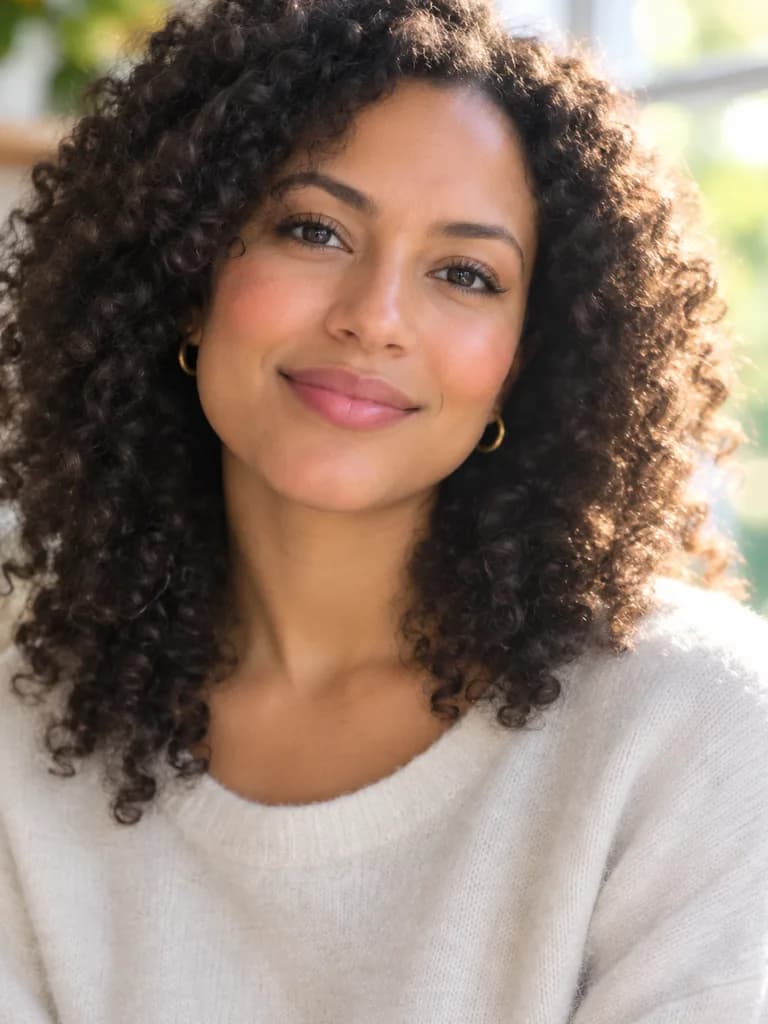
 BeforeAfter
Examples
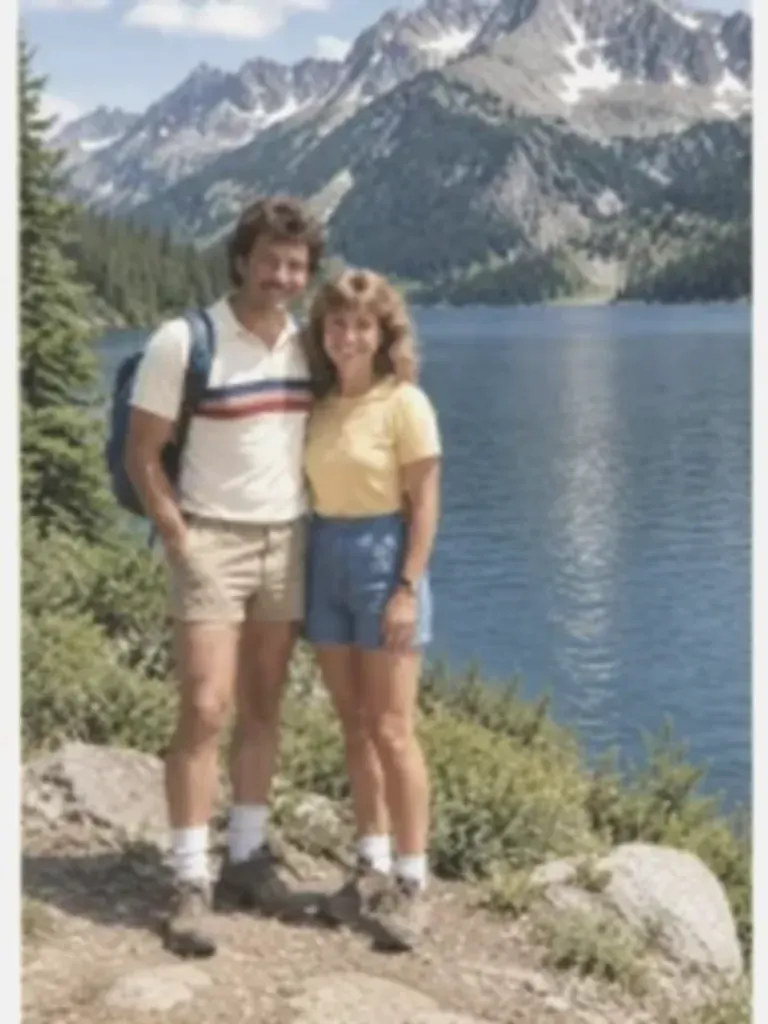
Illustrations of the kind of result this makes. They are not app outputs.
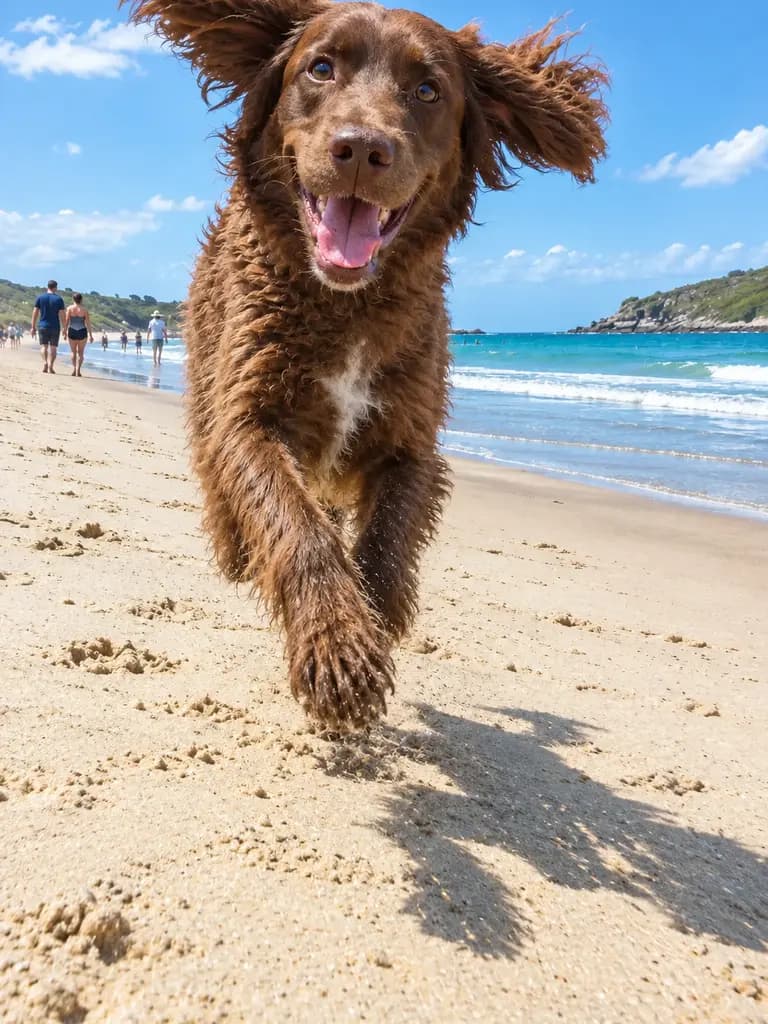
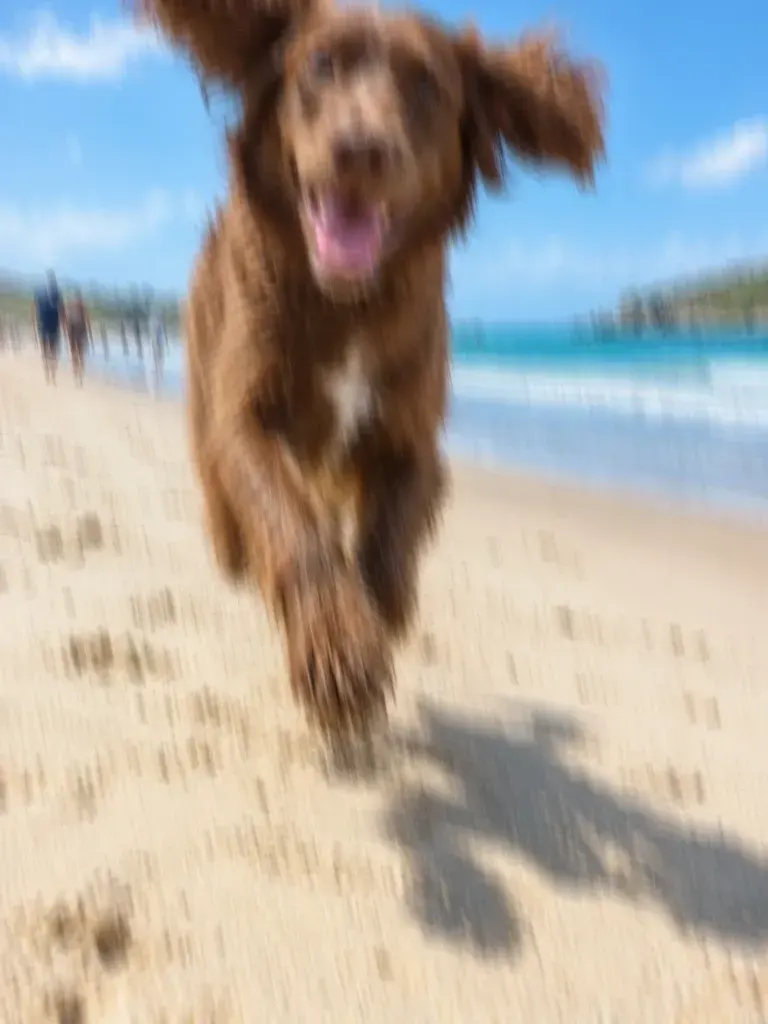 BeforeAfter
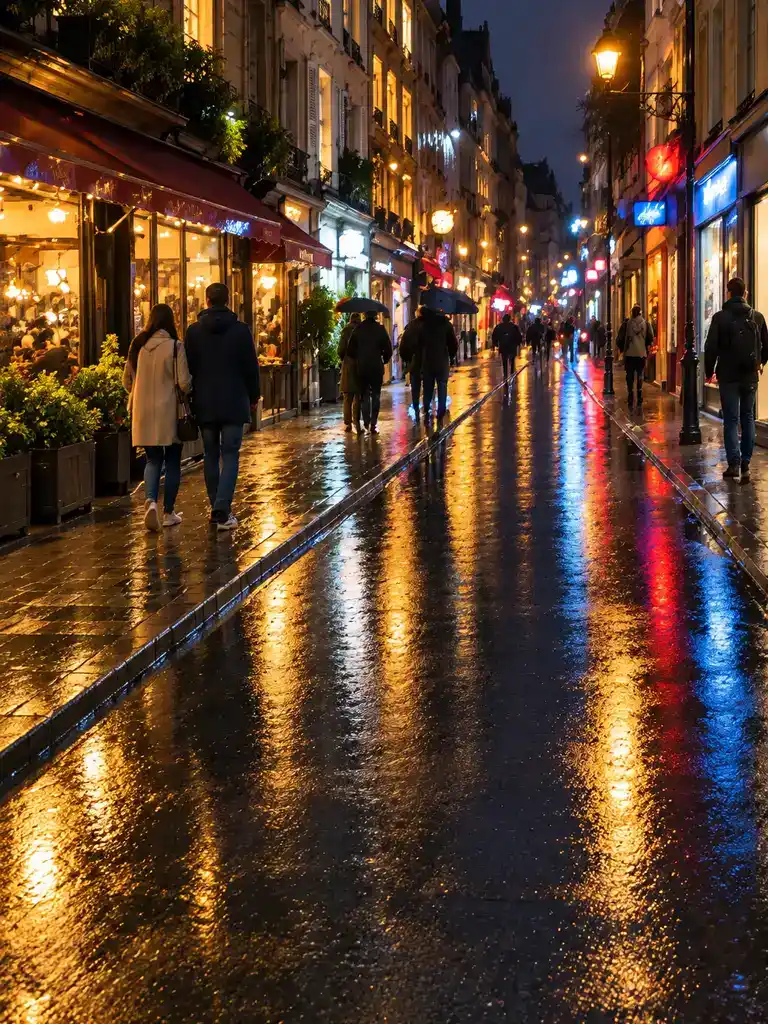
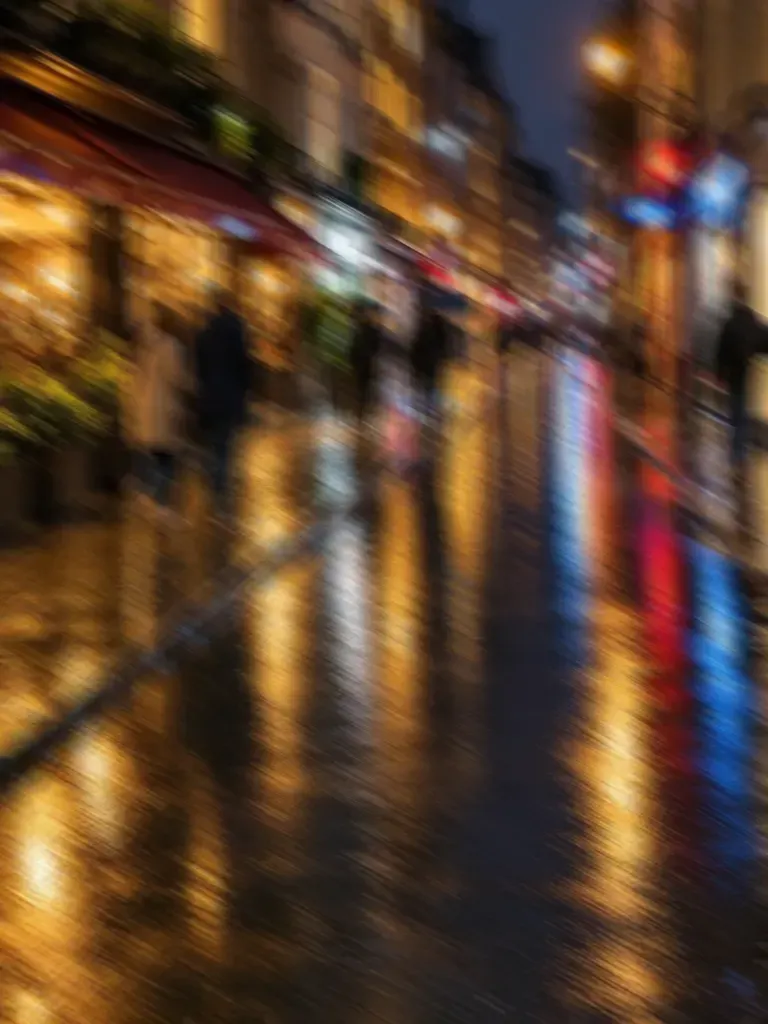 BeforeAfter
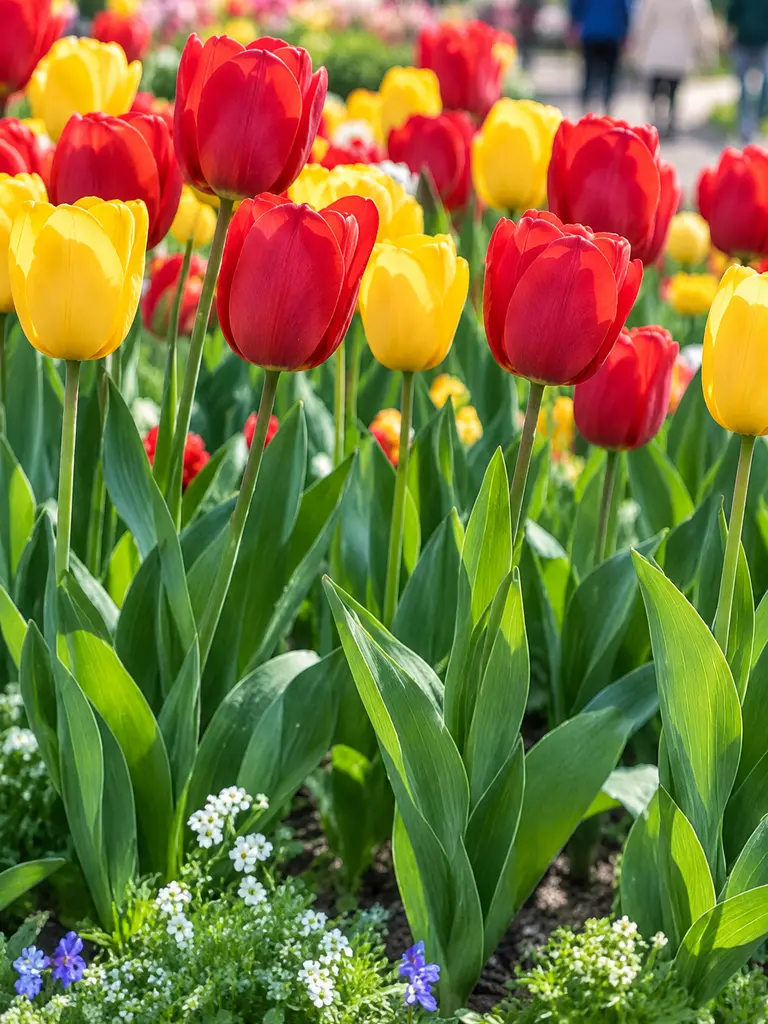
 BeforeAfter

 BeforeAfter
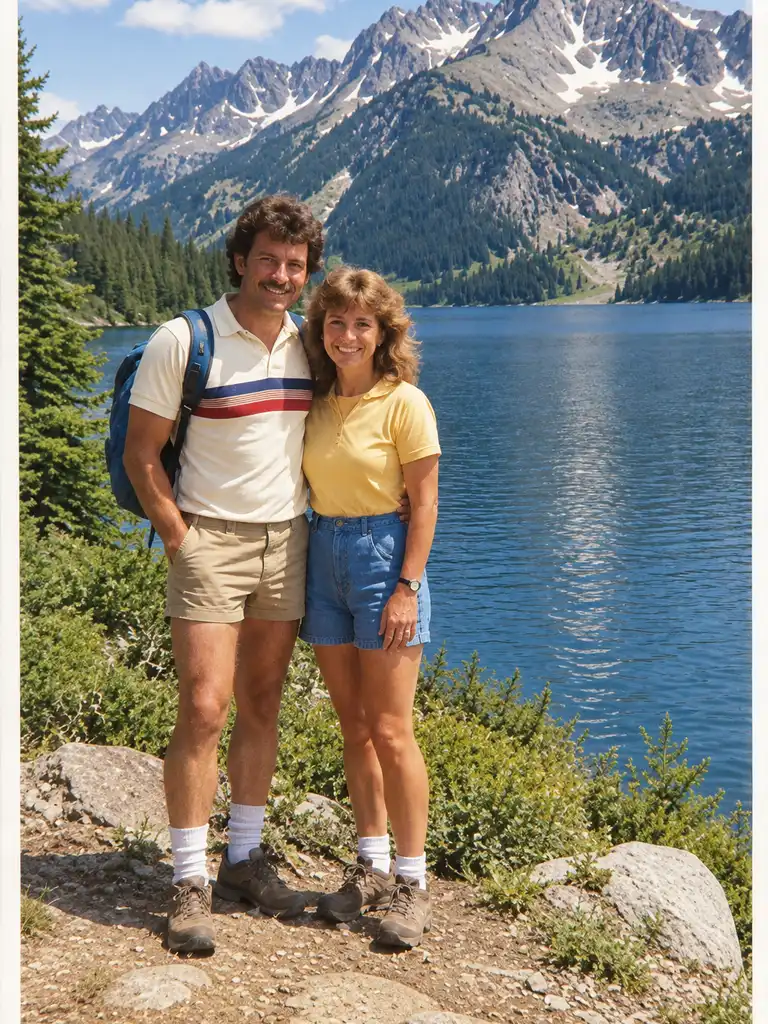
 BeforeAfter
How it works
Add the original file
Use the photo from your camera roll, not a screenshot or a messenger copy; compression hides detail the model could keep.
Send the prepared instruction
It asks the model to sharpen and to keep faces unchanged. Add "only a little" if you want a subtle result.
Compare faces at full size
Check that the person still looks like themselves, then save.
Why does the result differ from a photo taken in focus?
Blur destroys information. A slightly soft photo still contains most of the detail, so the model can bring it back convincingly. Heavy motion blur or a face far out of focus leaves little to work from, so the model fills in what it thinks was there. That is why faces can drift on badly blurred photos: the result is sharper, but not a recording of what the lens saw. Treat it as a repair, compare it with the original, and keep the original file.
About the examples
The before-and-after pairs on this page are illustrations made with an image model to show the kinds of blur the tool targets. They are not UniqAI outputs. Examples from real repairs in the app will be added.
Unblur, enhance or restore?
Use this page when the only problem is blur. If the photo is also dark or noisy, the AI image enhancer handles sharpness, noise and exposure in one 12-gem run. If it is a scanned print with scratches or fading, start with Restore old photos. Neither page increases the pixel size of your file.
Questions about Unblur Image
Can this fix a blurry photo taken on an iPhone?
Yes. Photos from any phone work; add the original from your camera roll in the web app rather than a screenshot, because the original keeps more detail for the model to sharpen. The result costs 12 gems on Nano Banana.
Will it fully unblur a very out-of-focus photo?
No. It sharpens the detail that is still there, so a slightly soft photo recovers well while a face far out of focus comes back sharper but partly guessed. Compare faces with the original and do not rely on a heavily blurred photo as a record.
Does it work on motion blur from a moving pet or person?
Partly. Light motion blur from a small camera shake recovers well. A subject streaked across the frame will look cleaner, but the model has to invent the missing edges, so check the result closely before you share it.
Does it work on scanned or old photos?
Yes. Soft scans and older prints sharpen the same way. If the print also has scratches, creases or fading, repair those first with the restore tool, then sharpen, so damage is not sharpened along with the detail.
How much does it cost to unblur a photo?
A sharpening pass on Nano Banana costs 12 gems, shown next to the model before you generate. If a generation fails, the gems are returned.

Coming soon to the App Store for iPhone
Chat, photo and video generation with several AI models in one app.