

Product Photo Prompts: From a Phone Photo to a Catalogue Shot
Three kinds of product prompt: a studio shot from text, a cutout that moves your product to a plain backdrop, and a Kling 3.0 clip.
Updated
 Illustration
How do you write a product photo prompt?
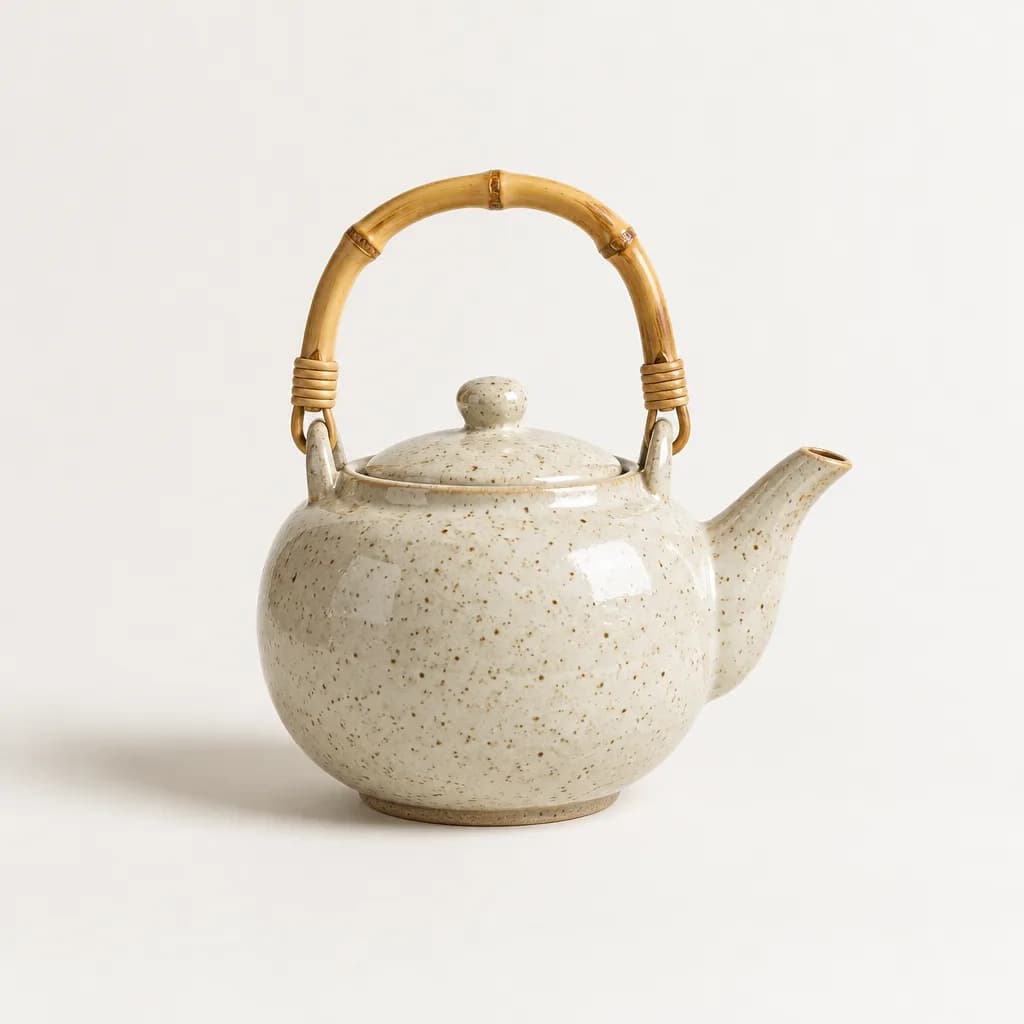
A product prompt describes the object, the surface, one light, the lens and the framing, in that order, and says nothing about mood until the physical setup is complete. The teapot prompt on this page is the pattern: material and colour ("speckled cream stoneware, bamboo handle"), the surface ("seamless warm-white paper sweep"), one light and its effect ("one large softbox from the left, a single soft wrap-around shadow"), realism cues ("true colours, crisp edges"), then lens and aperture ("90 mm lens, f/8") and framing ("square, centred, generous empty space").
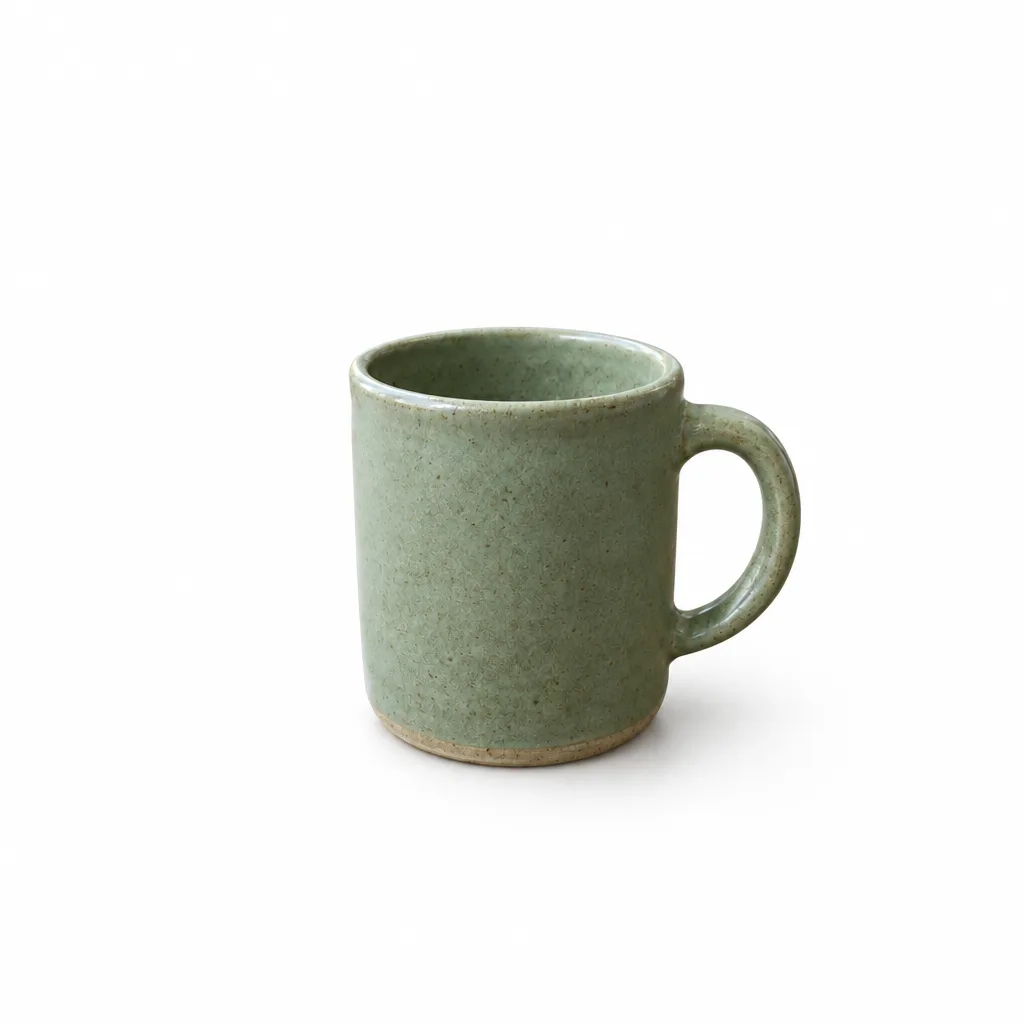
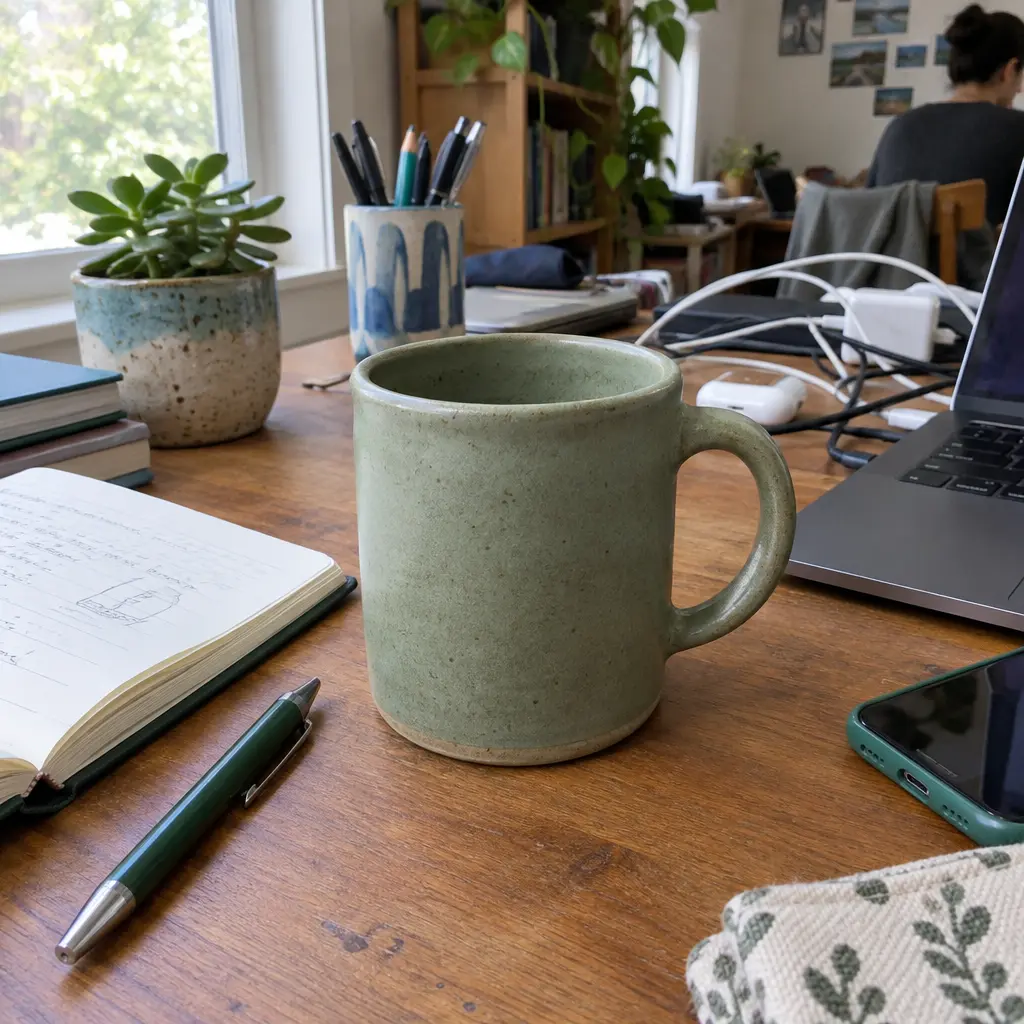
A cutout prompt is different: the photo already contains the product, so the prompt only names the new backdrop and locks everything else. "Remove the entire background and replace it with a plain, evenly lit pure white backdrop. Keep the mug, its edges, colors and position exactly as they are, with a soft natural shadow under it." The shadow line matters; without it the product floats.
Two things to leave out: logos and printed text, which render as broken lettering, and exact counts of items, which image models do not hold reliably.
Studio shot from text
IllustrationIllustration made from this prompt with an image model, not a result from the UniqAI app.
High-end catalogue product photograph of a speckled cream stoneware teapot with a bamboo handle on a seamless warm-white paper sweep; one large softbox from the left giving a single soft wrap-around shadow, subtle glaze reflections, true colours, crisp edges, 90 mm lens, f/8. Square frame, teapot centred with generous empty space.
Run this promptCutout: a plain background from a phone photo
 BeforeAfter
Illustration of this look, made from the prompt with an image model, not from your photo. Your result starts from your own photo.
Remove the entire background and replace it with a plain, evenly lit pure white backdrop. Keep the mug, its edges, colors and position exactly as they are, with a soft natural shadow under it. Do not change the framing, crop, camera angle, or anything not mentioned. The result must look like an untouched real photograph, with no smudges, repeated textures, halos or visible seams.
Apply to my photo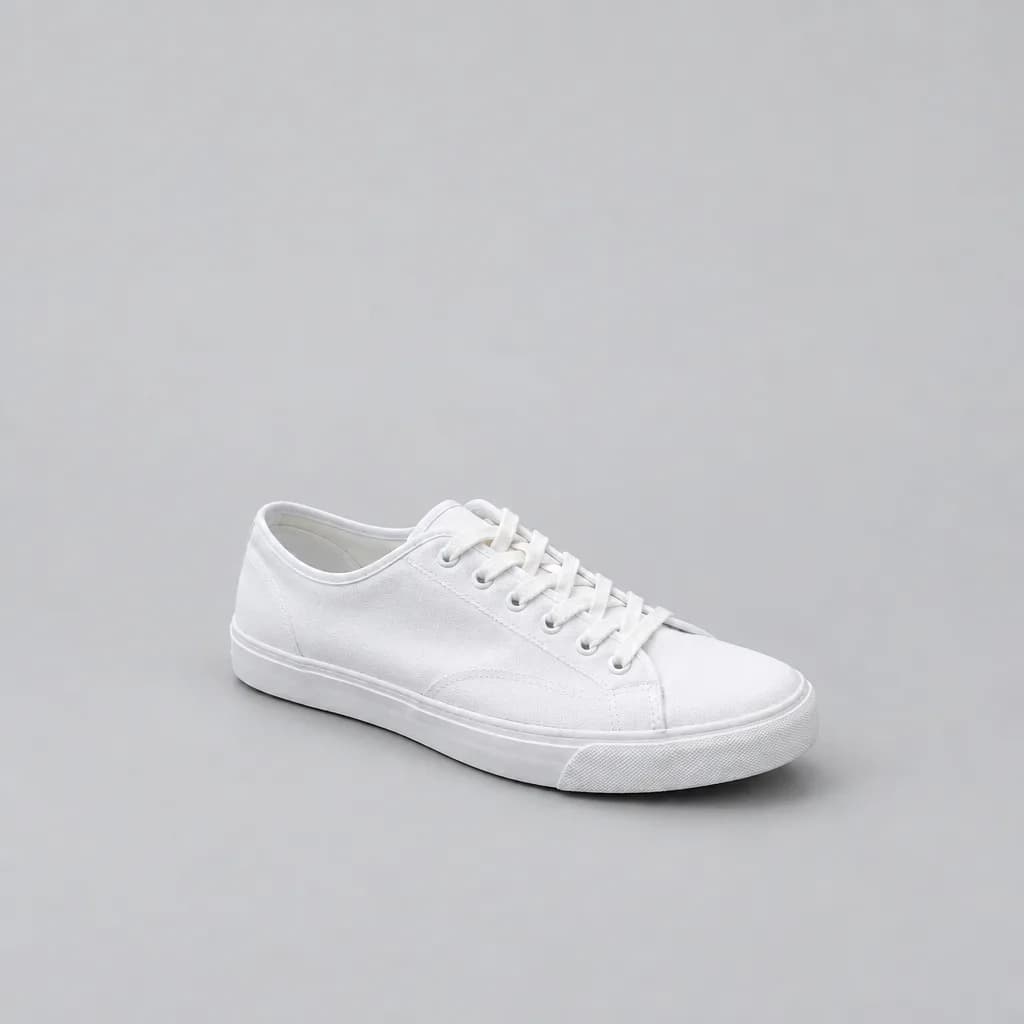
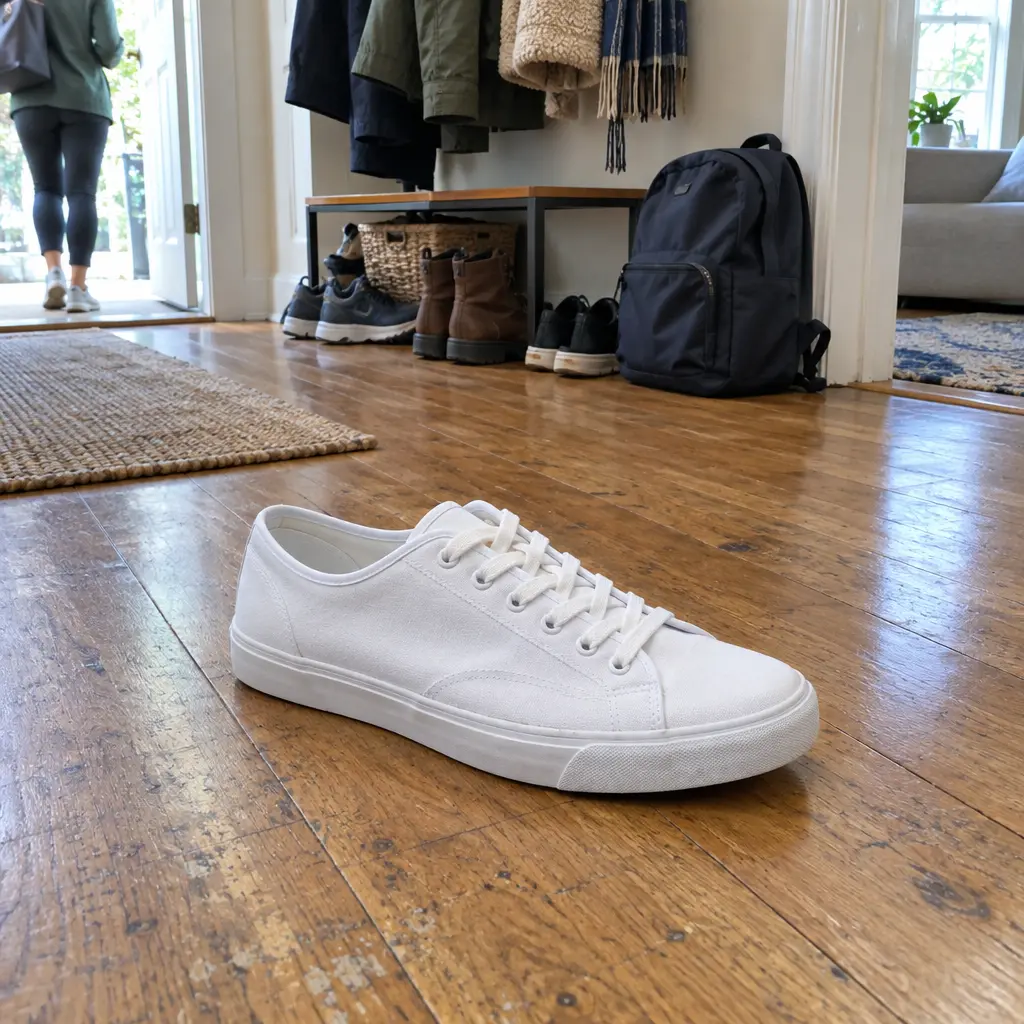 BeforeAfter
Illustration of this look, made from the prompt with an image model, not from your photo. Your result starts from your own photo.
Remove the entire background and replace it with a plain, evenly lit light-grey studio backdrop. Keep the sneaker, its edges, colors and position exactly as they are, with a soft natural shadow under it. Do not change the framing, crop, camera angle, or anything not mentioned. The result must look like an untouched real photograph, with no smudges, repeated textures, halos or visible seams.
Apply to my photo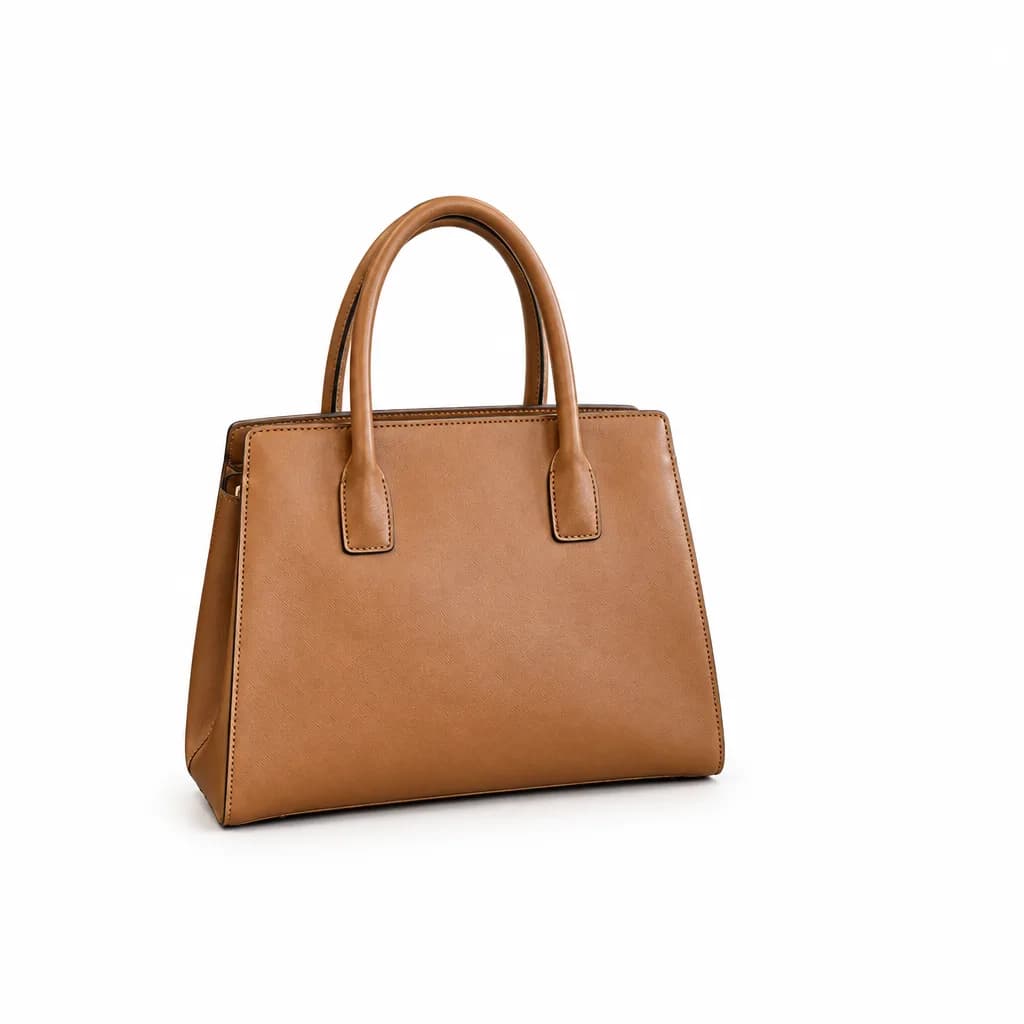
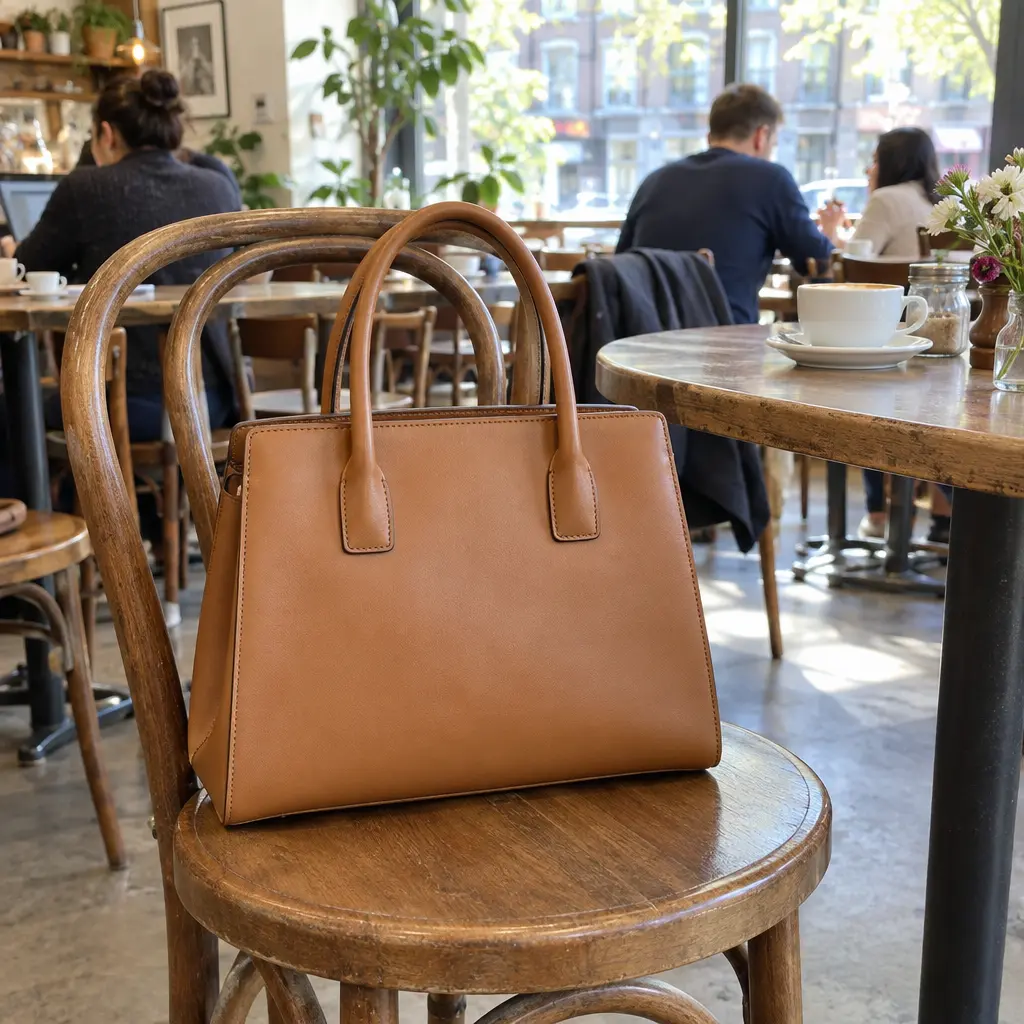 BeforeAfter
Illustration of this look, made from the prompt with an image model, not from your photo. Your result starts from your own photo.
Remove the entire background, including the chair, and replace it with a plain, evenly lit pure white backdrop. Keep the handbag, its edges, colors and position exactly as they are, with a soft natural shadow under it. Do not change the framing, crop, camera angle, or anything not mentioned. The result must look like an untouched real photograph, with no smudges, repeated textures, halos or visible seams.
Apply to my photo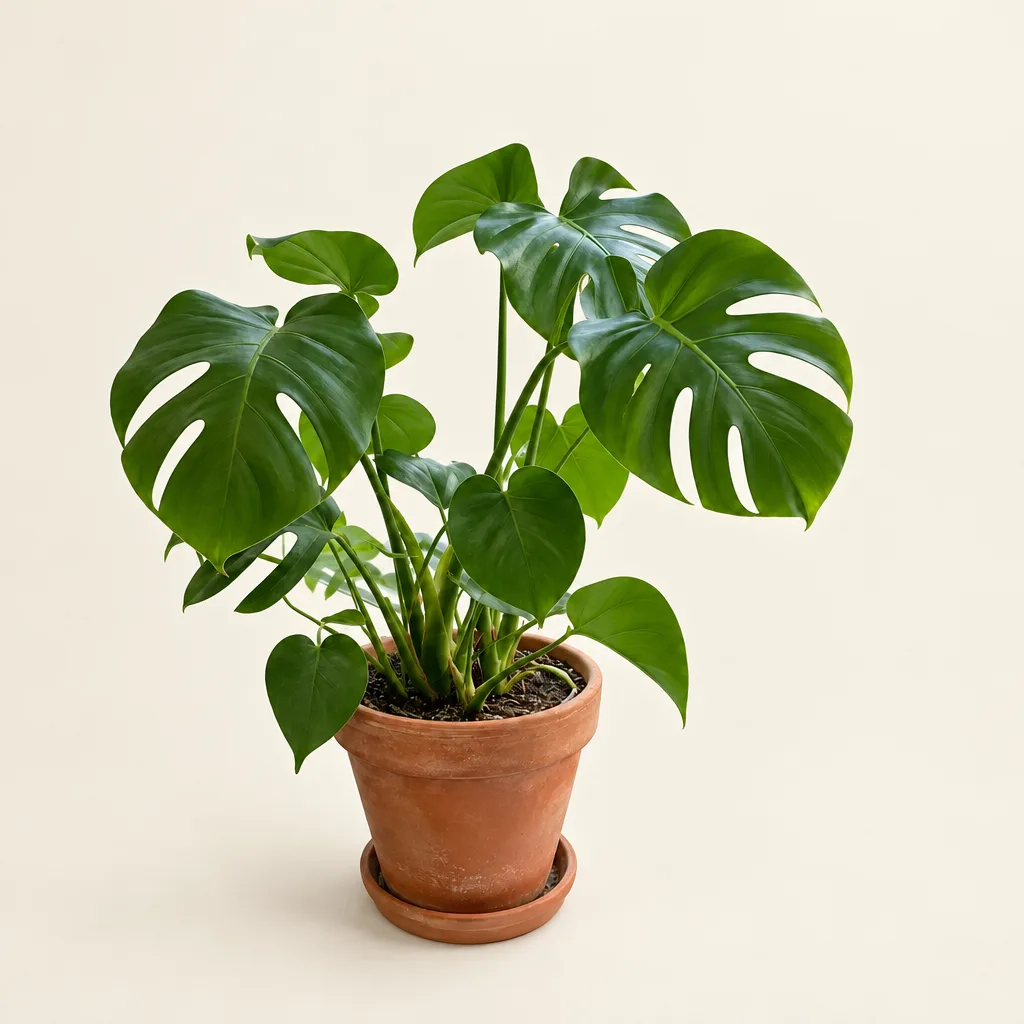
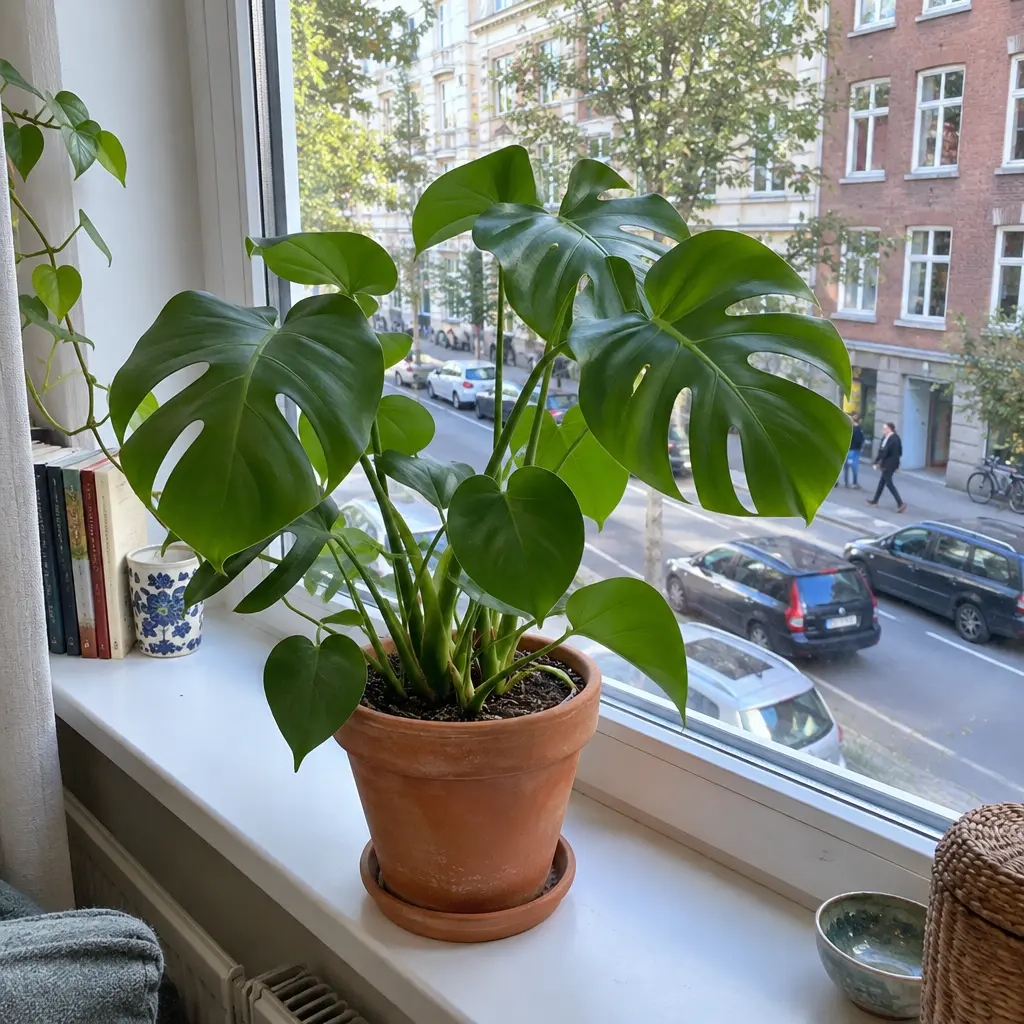 BeforeAfter
Illustration of this look, made from the prompt with an image model, not from your photo. Your result starts from your own photo.
Remove the entire background, including the window and the windowsill, and replace it with a plain, evenly lit cream backdrop. Keep the plant, its leaves, the pot and its position exactly as they are, with a soft natural shadow under it. Do not change the framing, crop, camera angle, or anything not mentioned. The result must look like an untouched real photograph, with no smudges, repeated textures, halos or visible seams.
Apply to my photoProduct clip on Kling 3.0
A frosted glass candle jar with a wooden lid beside it on a linen cloth, the flame flickering gently. Slow, stable push in on the flame. 100 mm macro lens, warm candlelight as the key light with a soft window fill, shallow depth of field. Cosy, quiet mood.
Run on Kling 3.0A steel wristwatch with a dark blue dial standing on a black stone block, the second hand sweeping. Slow quarter-turn orbit around the watch, stable framing. 90 mm macro lens, one hard key light from the top right with a thin rim light, small specular highlights on the case. Precise, premium atmosphere.
Run on Kling 3.0A matte kraft coffee bag standing next to a filled ceramic cup on a light wooden counter, steam rising slowly from the cup. Static camera, product centred, medium shot. 50 mm lens, soft morning window light from the left, clean warm palette. Fresh, calm mood.
Run on Kling 3.0About the examples
The teapot was generated from the prompt shown with an image model. Each cutout pair was made by running the prompt shown on the "before" photo with an image-editing model, so the pair records what that wording did to that photo. All of them are illustrations, not UniqAI outputs. The clip in the gallery is a sample product-style clip from the UniqAI app; it was not made from the three Kling prompts above, which are written in the order Kuaishou's prompt guides describe and should be treated as patterns to adapt, since every run differs. Kling notes are on the Kling AI prompts page.
What a product image or clip costs
A text-to-image product shot costs 3 gems on Flux Schnell, 12 on Nano Banana or 18 on FLUX 1.1 Pro. A cutout runs on Nano Banana for 12 gems, since it needs your photo as input. A 5 second Kling 3.0 clip is 80 gems and an 8 second clip 120 gems; video models need a paid plan. The cost is shown next to the model before you press Generate, and credits for a failed generation are returned automatically. For a product clip that starts from your own photo rather than text, use image to video with a short subject-plus-movement prompt.
Examples
App samples come from the UniqAI app. Illustrations show other edits you can ask for.
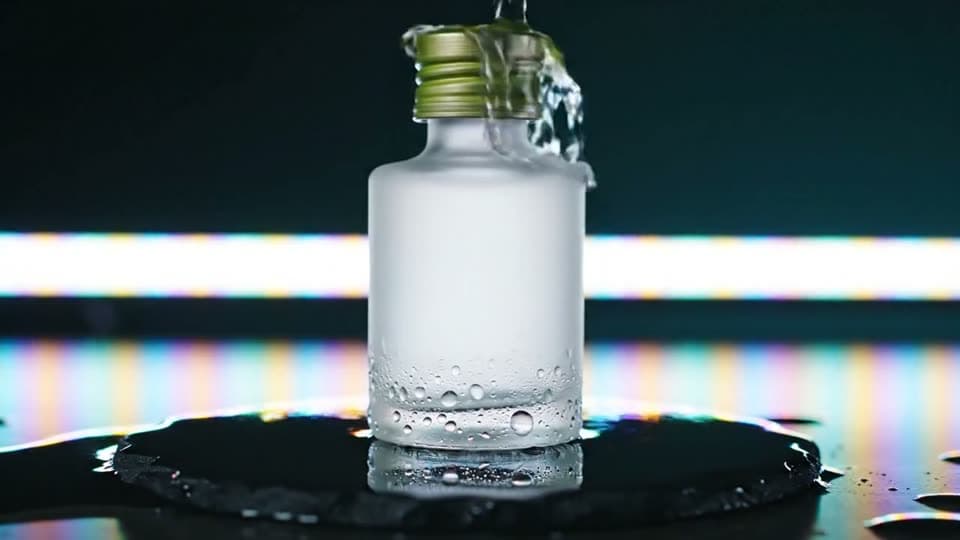 BeforeAfterBeforeAfterBeforeAfterBeforeAfter
How it works
Start from a phone photo or from text
A cutout prompt needs your photo; a studio-shot prompt needs only the text.
Run it with the cost shown
Nano Banana edits for 12 gems, Flux Schnell drafts for 3; a Kling 3.0 clip is 80 gems.
Check edges and shadow at full size
Handles, straps and glass are where cutouts fail. Keep the prompt, change the backdrop line.
Questions about Product Photo Prompts
Which model is right for a product photo prompt?
For a cutout or any edit of a photo you already have, Nano Banana, because it takes the photo as input and keeps the product intact. For a new studio shot from text, Flux Schnell is the cheap draft at 3 gems and FLUX 1.1 Pro the detailed final at 18. The Run button on each card preselects the matching one.
Can I keep my product's logo or label in the cutout?
Usually, because a cutout prompt tells the model to keep the product exactly as it is and only replace the background. Check the label at full size after the run; fine print is where editing models slip. Generating a logo from text in a studio-shot prompt does not work: lettering renders as broken shapes.
What backdrop should I ask for?
Pure white for marketplace listings, light grey or cream when the product itself is white or very pale, and always with a soft natural shadow so the item sits on the surface. The four cutout prompts on this page differ only in that one backdrop line, so copy the closest one and change the colour.
Can I make a product video from the same prompt?
Add one movement and one camera move to the same setup and run it on Kling 3.0: the three product clip prompts above are written that way. For a clip that starts from your own product photo, use image to video with a short subject-plus-movement prompt such as "steam rises from the cup, slow push in".
How much does one product image or clip cost?
3, 12 or 18 gems for an image depending on the model, and 80 gems for a 5 second Kling 3.0 clip. Video models need a paid plan. The cost is shown before you generate, and credits for a failed generation are returned automatically.

Coming soon to the App Store for iPhone
Chat, photo and video generation with several AI models in one app.