
AI Object Remover: Erase People and Objects by Describing Them
Describe what to remove, such as the tourist behind you or the cable on the wall, and the model erases it and fills the space to match the background.
Updated

 BeforeAfter
Examples
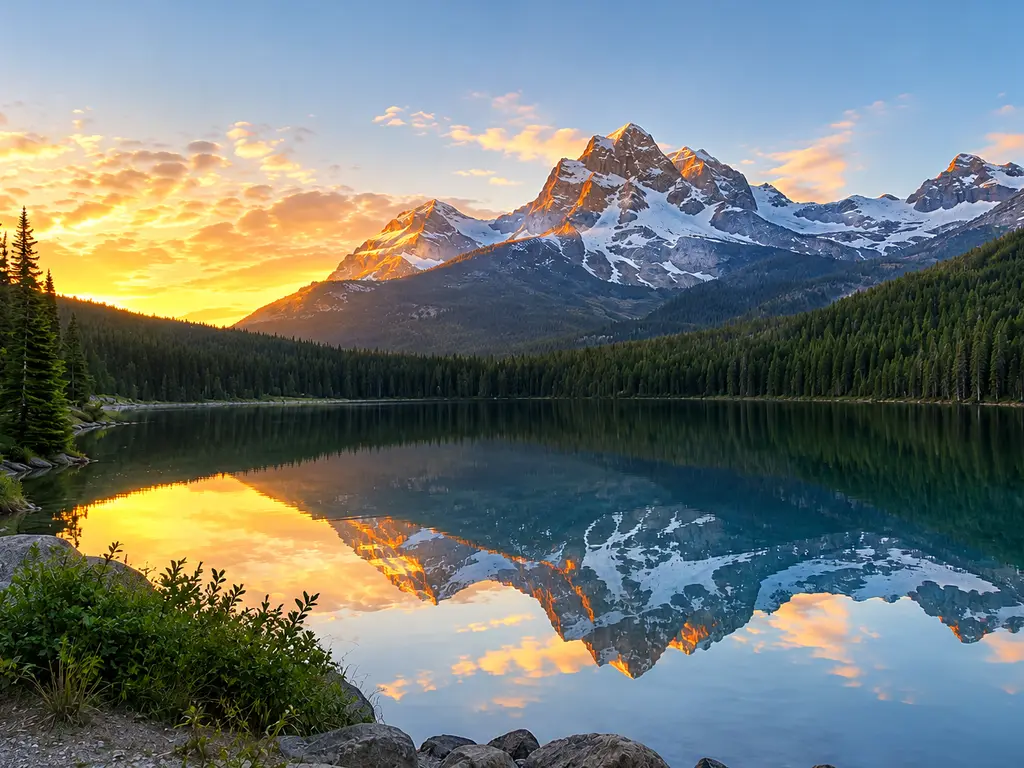
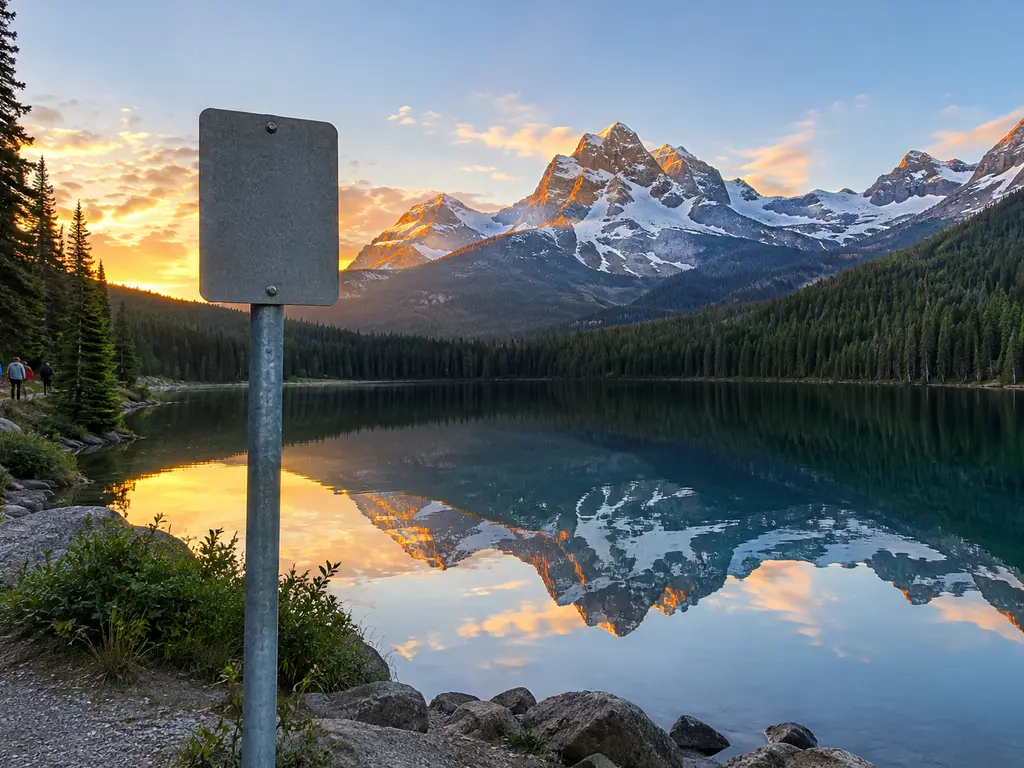
Illustrations of the kind of result this makes. They are not app outputs.

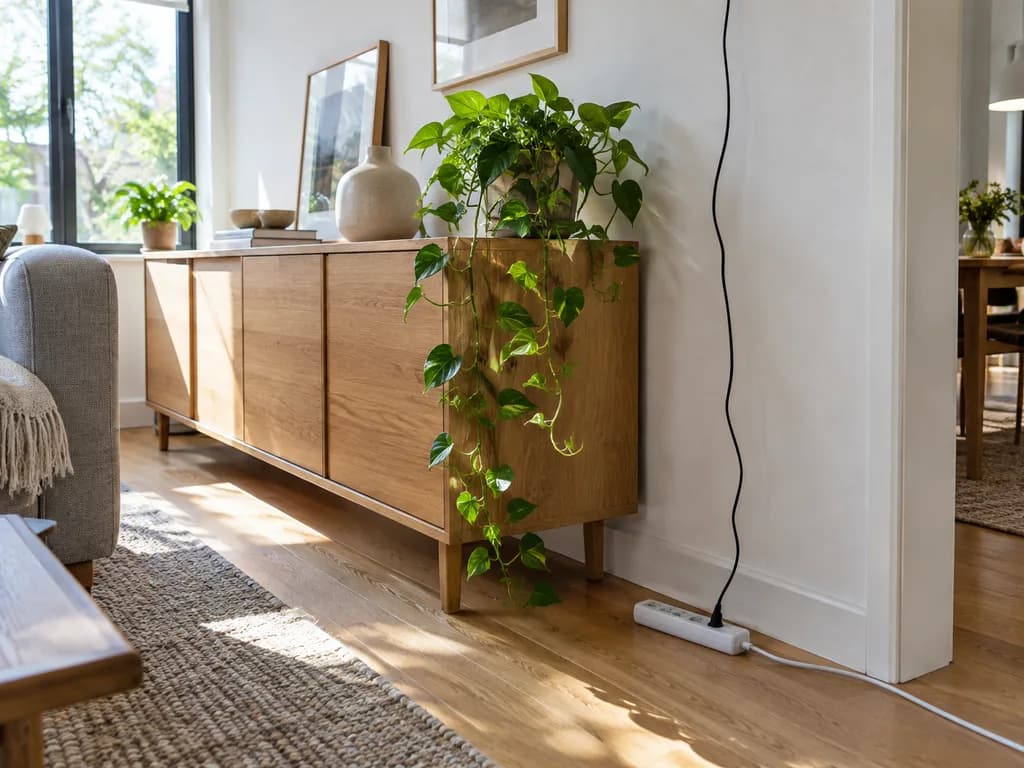 BeforeAfter
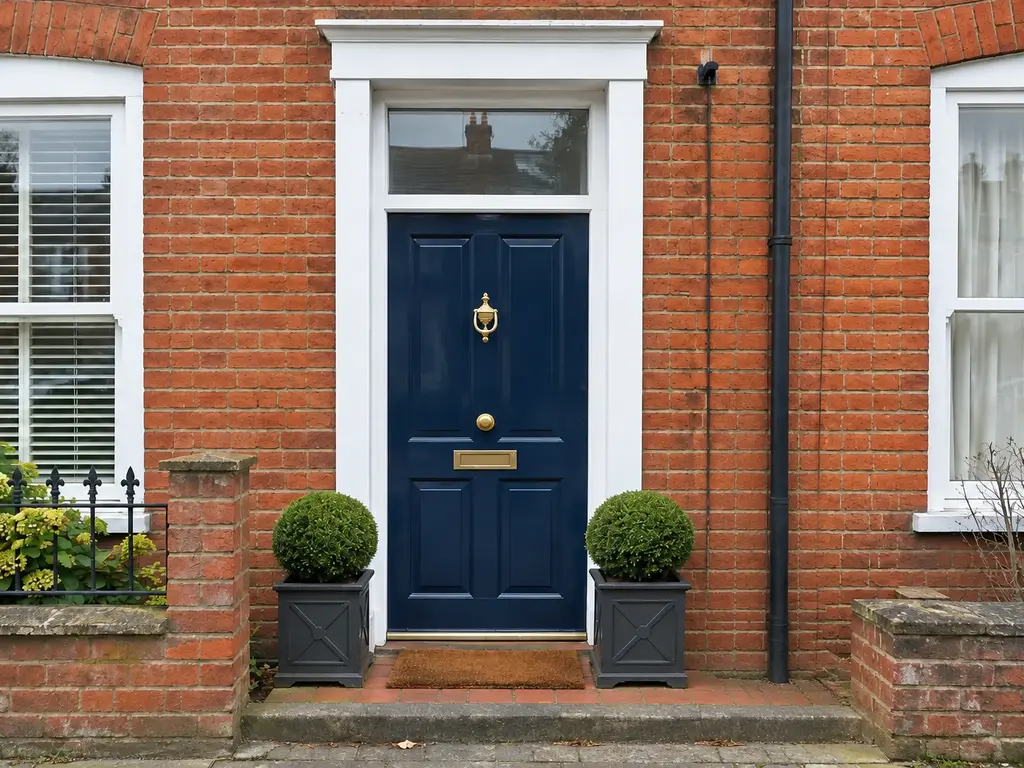
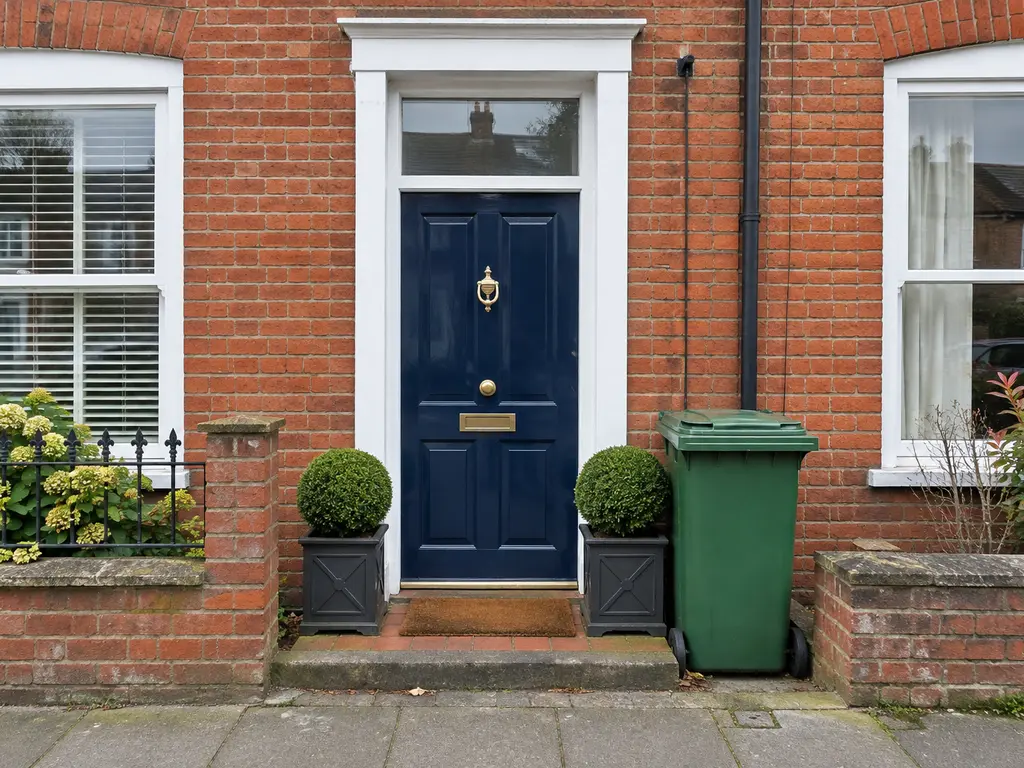 BeforeAfter
 BeforeAfter

 BeforeAfter

 BeforeAfter
How it works
Add your photo
Any photo with a person, object or mark you want gone.
Describe what to remove
In words, not with a brush: "remove the man in the red jacket on the left". Name its shadow too if it casts one.
Check the fill and save
Zoom in where the object was. If the patch looks off, run it again with a more exact description.
How do I tell it what to remove?
There is no brush or mask. You describe the thing in words, and the more exact the description, the cleaner the result:
- Say where it is: "the person on the far left", "the bin to the right of the door".
- Say what it looks like: "the man in the red jacket", "the black cable on the white wall".
- Include its shadow or reflection if you can see one.
- Say what must stay: "keep the two people in the middle exactly as they are".
One object per run is more predictable than a list. Repeat for the next one on the edited photo.
About the examples
The before-and-after pairs on this page are illustrations made with an image model to show the kind of removal the tool targets. They are not UniqAI outputs. Examples from real removals in the app will be added.
What it can and cannot do
The model erases what you describe and fills the gap with a plausible match to the surroundings. It cannot reveal what was behind the object, because that was never in the photo; it guesses. Small objects in front of sky, grass, water or a plain wall disappear almost without trace. A person covering half the frame, or an object right at the edge of the photo, leaves a softer patch. The edit is generative, so compare faces and fine detail with the original before you share.
Object remover or background changer?
Use this page to take one thing out of a photo and keep the rest. If you would rather replace the whole scene behind the subject, Background changer does that in one edit. For a change you can describe in a sentence, such as a new sky or outfit, use the AI photo editor. All three are 12-gem edits on Nano Banana.
Questions about AI Object Remover
Can I remove a person from a photo, not just an object?
Yes. Describe the person by position and clothing, for example "the woman in the blue coat behind us", and the model erases them and fills the space to match the background. It works most cleanly when the background behind them is simple, such as sky, sand or a wall.
Do I have to paint over the object with a brush?
No. There is no brush or mask; you describe what to remove in words. Say where it is, what it looks like and what must stay unchanged. One object per run gives a more predictable fill than a list of several.
How much does one removal cost?
A removal on Nano Banana costs 12 gems, shown next to the model before you generate. If a generation fails, the gems are returned. Each follow-up removal on the edited photo is another 12-gem run.
Will it leave a visible patch where the object was?
On simple backgrounds the fill is usually seamless. Busy patterns, very large objects and removals at the edge of the frame can leave a softer or slightly repeated patch. Zoom in before you save, and run it again with a more exact description if something looks off.
Does it work on iPhone photos?
Yes. Any photo from a phone or camera works; you add it in the web app after pressing the button. Use the original file rather than a screenshot so the model has real detail to match when it fills the gap.

Coming soon to the App Store for iPhone
Chat, photo and video generation with several AI models in one app.